

This is a question that came up on Quora and, since ‘incorrect dates’ is something I see all the time on almost everyone’s tenant outside the US, I thought a short blog might help.
There are a few possible causes, such as a system clock being wrong, however there is a really good chance that if you are seeing this it’s because your site is using the default US date format (rather than one that’s used by the other 93% of the world) since it’s not obvious how to set the default to anything else.
The manual fix
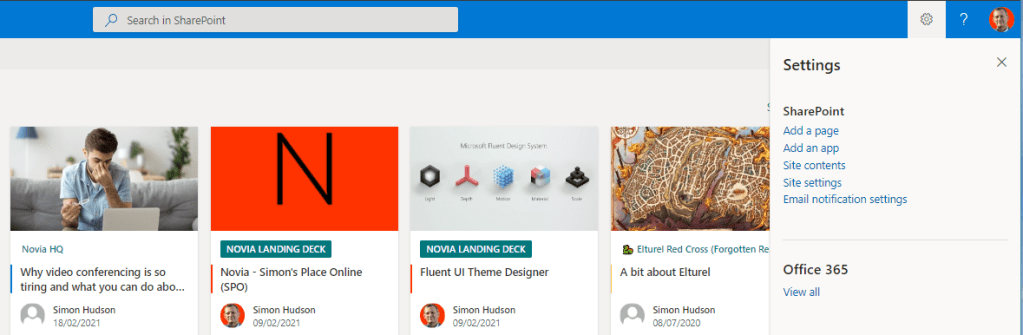
Just go to Site Settings (Cog wheel | Site Information | view all site settings | Regional Settings) in the site that hosts the list and correct both the Time Zone and the Region to your locale.

Lists Gotcha
If it’s a Microsoft List rather than being a list in SharePoint then you need to find the default SharePoint site (because Microsoft Lists are still SharePoint Lists, just less obviously). Usually the easiest way to do that is to look at the URL or try the site that opens by default when you open SharePoint from the ‘Waffle’ menu top right.


You an get there more quickly with this URL, replacing the TenantName with yours:
https://<TenantName>.sharepoint.com/_layouts/15/regionalsetng.aspx Everything, everywhere, all at once
You can also run a script to sweep through and set the region for every site. It’s always a good idea to do that, but only if you are a SharePoint or M365 admin.
Here is the PnP PowerShell to change the regional settings for all sites in SharePoint Online using PowerShell (source: Salaudeen Rajack):
#Parameter
$TenantAdminURL = "https://Crescent-admin.sharepoint.com"
$LocaleId = 2057 # UK
$TimeZoneId = 2 # London

#Function to Set Regional Settings on SharePoint Online Web
Function Set-RegionalSettings
{
    [cmdletbinding()]
    Param(
        [parameter(Mandatory = $true, ValueFromPipeline = $True)] $Web
    )

    Try {
        Write-host -f Yellow "Setting Regional Settings for:"$Web.Url
        #Get the Timezone
        $TimeZone = $Web.RegionalSettings.TimeZones | Where-Object {$_.Id -eq $TimeZoneId}
        #Update Regional Settings
        $Web.RegionalSettings.TimeZone = $TimeZone
        $Web.RegionalSettings.LocaleId = $LocaleId
        $Web.Update()
        Invoke-PnPQuery
        Write-host -f Green "`tRegional Settings Updated for "$Web.Url
    }
    Catch {
        write-host "`tError Setting Regional Settings: $($_.Exception.Message)" -foregroundcolor Red
    }
}

#Connect to Admin Center
$Cred = Get-Credential
Connect-PnPOnline -Url $TenantAdminURL -Credentials $Cred

#Get All Site collections - Exclude: Seach Center, Mysite Host, App Catalog, Content Type Hub, eDiscovery and Bot Sites
$SitesCollections = Get-PnPTenantSite | Where -Property Template -NotIn ("SRCHCEN#0", "SPSMSITEHOST#0", "APPCATALOG#0", "POINTPUBLISHINGHUB#0", "EDISC#0", "STS#-1")

#Loop through each site collection
ForEach($Site in $SitesCollections)
{
    #Connect to site collection
    $SiteConn = Connect-PnPOnline -Url $Site.Url -Credentials $Cred

    #Call the Function for all webs
    Get-PnPSubWeb -Connection $SiteConn -Recurse -IncludeRootWeb -Includes RegionalSettings, RegionalSettings.TimeZones | ForEach-Object { Set-RegionalSettings $_ }
    Disconnect-PnPOnline -Connection $SiteConn
}
Alternatively, you can set the defaults in the SharePoint Admin centre, in Settings | Site Creation

Finally, you can use PowerShell to loop through your deployed sites and update the Time Zone. You need to set $AdminSiteURL and $TimezoneName variables in the script and provide the credentials to connect to the SharePoint Online Admin centre.
#Load SharePoint CSOM Assemblies
Add-Type -Path "C:\Program Files\Common Files\Microsoft Shared\Web Server Extensions\16\ISAPI\Microsoft.SharePoint.Client.dll"
Add-Type -Path "C:\Program Files\Common Files\Microsoft Shared\Web Server Extensions\16\ISAPI\Microsoft.SharePoint.Client.Runtime.dll"

#function to change Timezone regional settings of a SharePoint Online site
Function Set-SPOnlineTimeZone([String]$SiteURL,[String]$TimezoneName,[PSCredential]$Cred)
{
     Try
     {
        #Setup Credentials to connect
        $Credentials = New-Object Microsoft.SharePoint.Client.SharePointOnlineCredentials($Cred.Username, $Cred.Password)

        #Set up the context
        $Ctx = New-Object Microsoft.SharePoint.Client.ClientContext($SiteURL)
        $Ctx.Credentials = $credentials

        #Get the Root web from given URL
        $Web = $Ctx.web
        $Ctx.Load($Web)

        #Get the Time zone to update
        $Timezones = $Web.RegionalSettings.TimeZones
        $Ctx.Load($Timezones)
        $Ctx.ExecuteQuery()
        $NewTimezone = $Timezones | Where {$_.Description -eq $TimezoneName}

        #Update the timezone of the site
        $Web.RegionalSettings.TimeZone = $NewTimezone
        $Web.Update()
        $Ctx.ExecuteQuery()

        Write-host -f Green "Timezone has been updated for "$Web.Url

        #Get all subsites of the web
        $Ctx.Load($Web.Webs)
        $Ctx.executeQuery()

        #Iterate through each subsites and call the function recursively
        Foreach ($Subweb in $Web.Webs)
        {
            #Call the function to set Timezone for the web
            Set-SPOnlineTimeZone -SiteURL $Subweb.URL -TimezoneName $TimezoneName -Cred $AdminCredentials
        }
   }
    Catch [System.Exception]
    {
        Write-Host -f Red $_.Exception.Message
    }
}

#Config parameters for SharePoint Online Admin Center and Timezone description
$AdminSiteURL = "https://crescent-admin.sharepoint.com/"
$TimezoneName ="(UTC+04:00) Abu Dhabi, Muscat"

#Get credentials to connect to SharePoint Online Admin Center
$AdminCredentials = Get-Credential

#Connect to SharePoint Online Tenant Admin
Connect-SPOService -URL $AdminSiteURL -Credential $AdminCredentials

#Get all Site Collections
$SitesCollection = Get-SPOSite -Limit ALL

#Iterate through each site collection
ForEach($Site in $SitesCollection)
{
    Write-host -f Yellow "Setting Timezone for Site Collection:"$Site.URL

    #Call the function to set Timezone for the site
    Set-SPOnlineTimeZone -SiteURL $Site.URL -TimezoneName $TimezoneName -cred $AdminCredentials
}
 Novia Works Ltd