
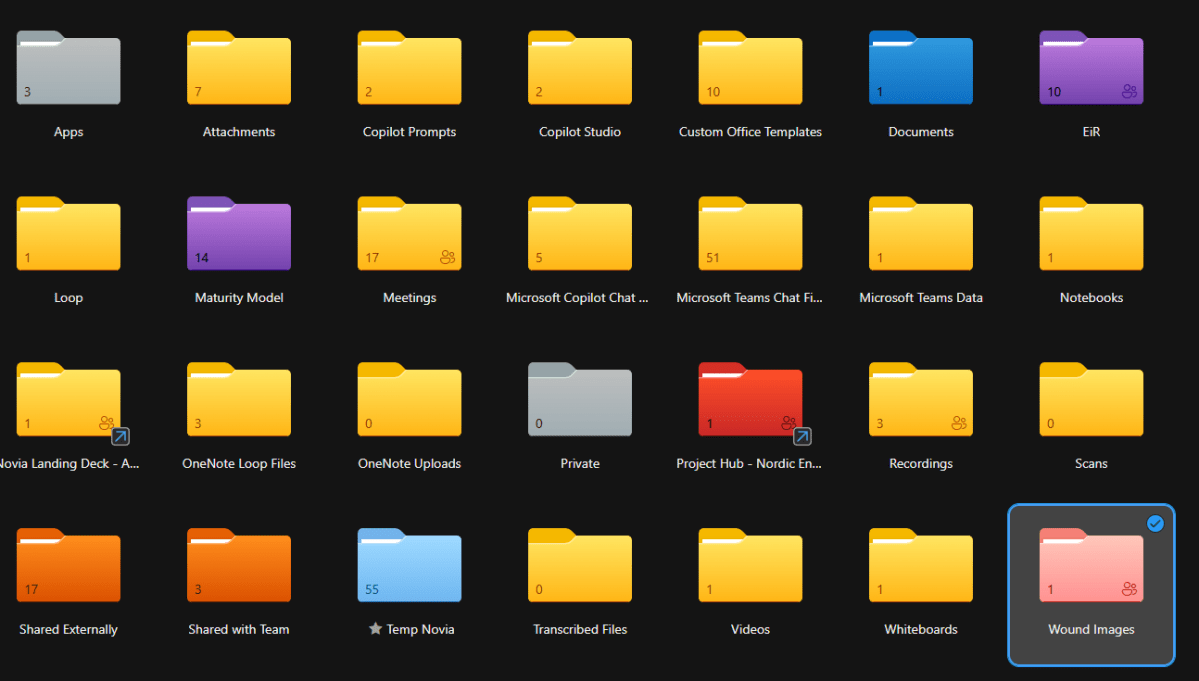
You, like me, might be a fan of applying colour to key folders as a way of differentiating them or providing a loose visual classification. It can be a great way of picking the most commonly used ones out of the sea of yellow (alongside pinning etc).
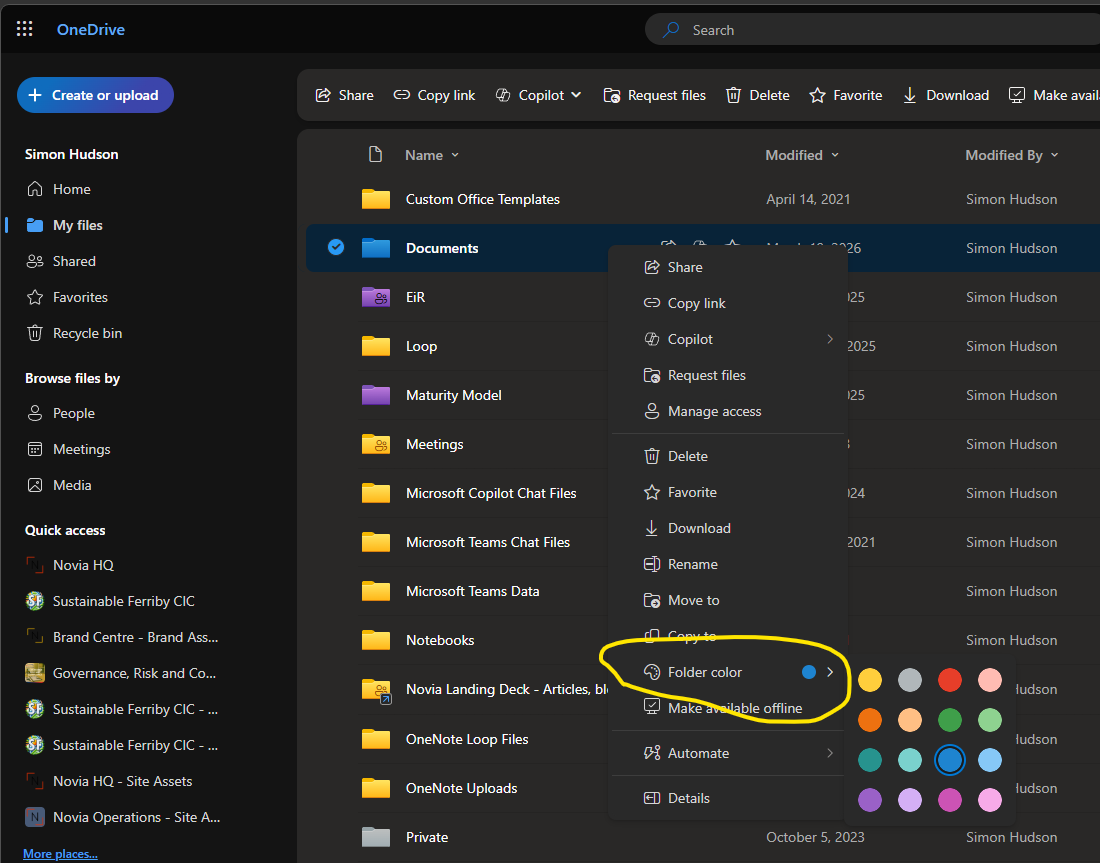
You, like me, might often find it doesn’t work. Some folders offer the Folder colour option in the right click/ellipsis menu, while it’s annoyingly absent for others.
What’s going on?
OneDrive
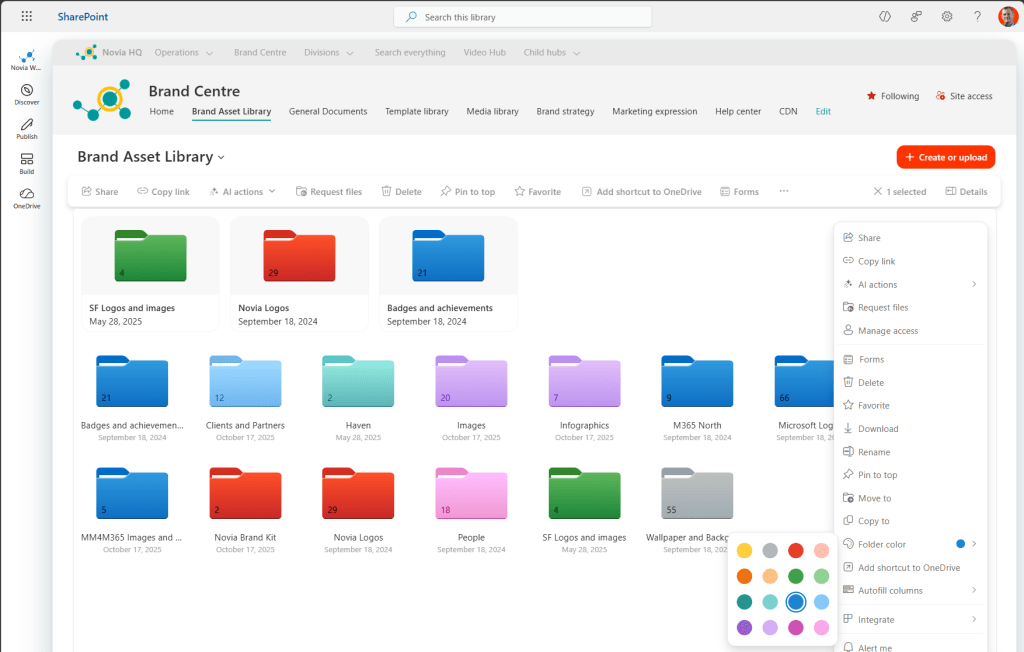
As a general rule, folder colour always works in OneDrive for Business (the M365 version). It’s where Microsoft first implemented it and it’s a first-class feature. Colours sync via the OneDrive sync client (the little blue cloud in the tool tray) so colours work in Windows Explorer too. And they appear in the OneDrive app.
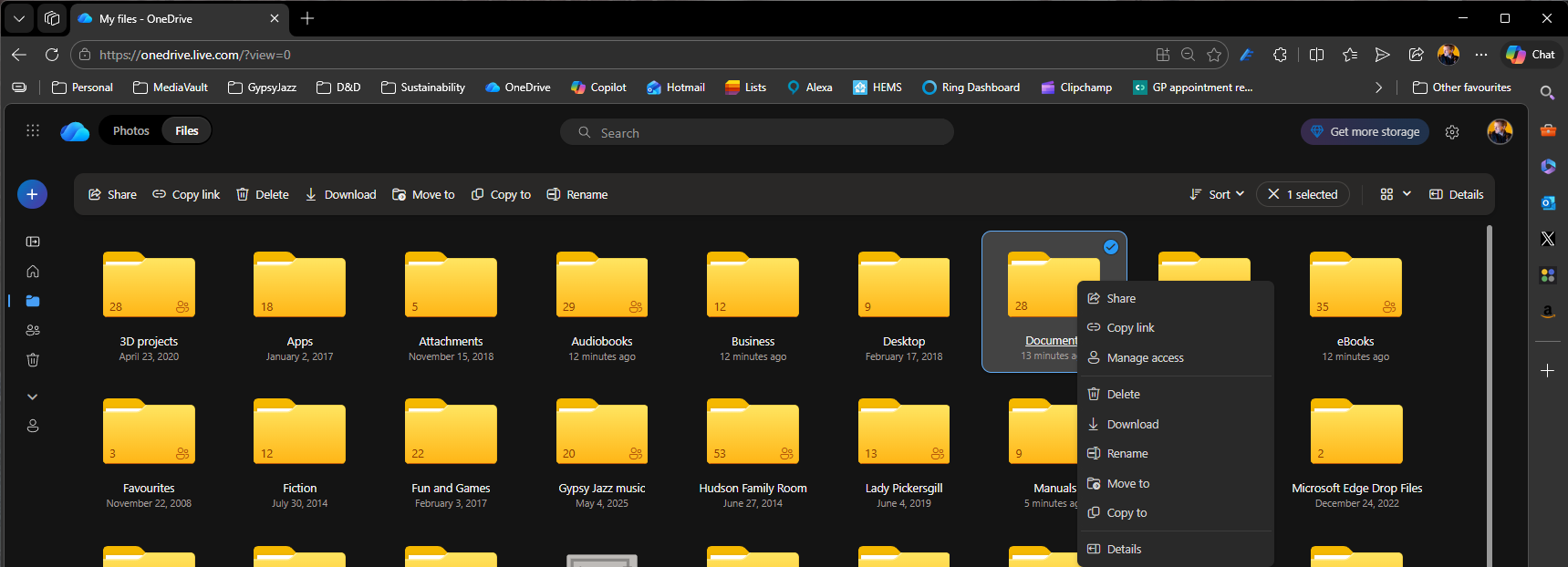
Disappointingly incoherent in OneDrive Personal.
It would be nice if this were also true for OneDrive Personal, but it’s mostly not – you can set a folder colour on a sync’d OneDrive Personal folder, but the web client probably ignores it and doesn’t give you the option to set colours. Weirdly, the mobile app does respect the colours, though you can’t set them from the app. It might work for some people some of the time, but it depends on the OneDrive sync version & Windows version. It has appeared, disappeared, and reappeared across updates. At this point Microsoft has not formally documented or committed to folder colour for Personal accounts. Another nail in the coffin of a consistent UI.
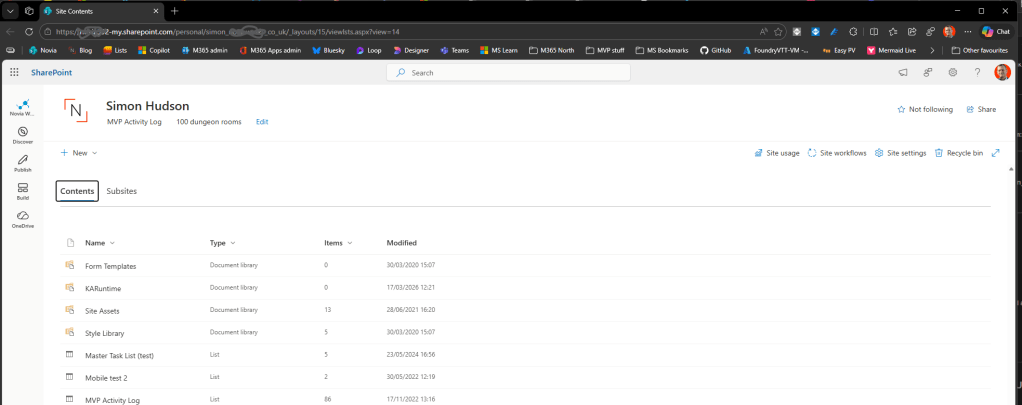
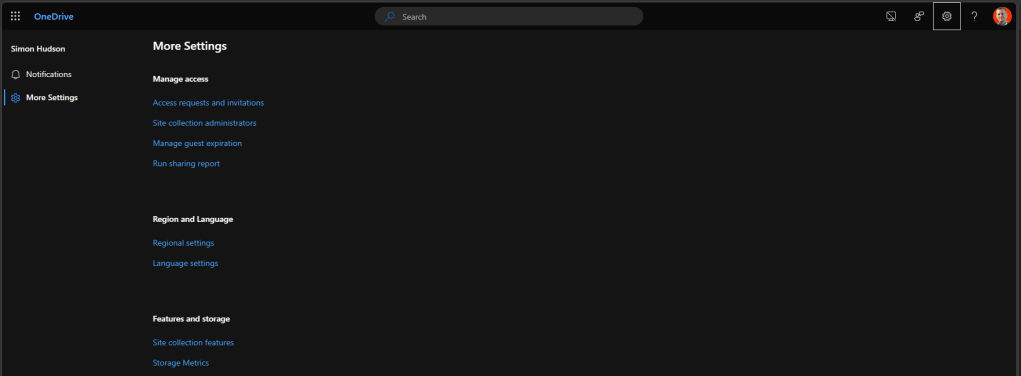
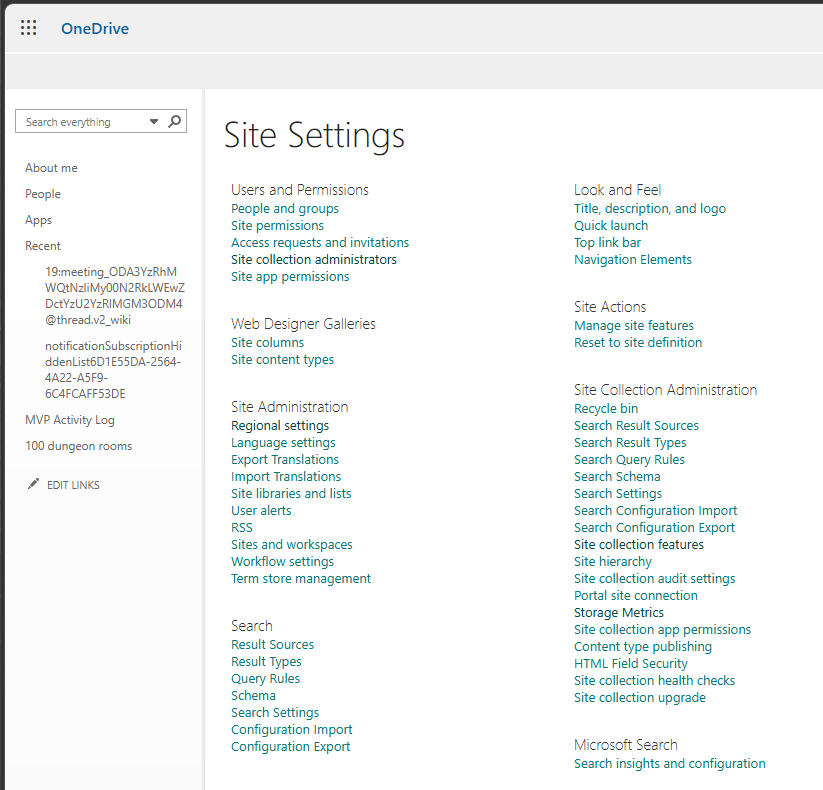
In part this is because OD4B really is SharePoint, but with a custom UI. It’s even possible to get into the SharePoint back end of OD4B if you really want to, from OneDrive for Business (web):
Site settings > Settings > OneDrive settings > More settings
Open Storage metrics etc. You could even change the end of the URL to get into the full SharePoint settings page
_layouts/15/settings.aspx
SharePoint
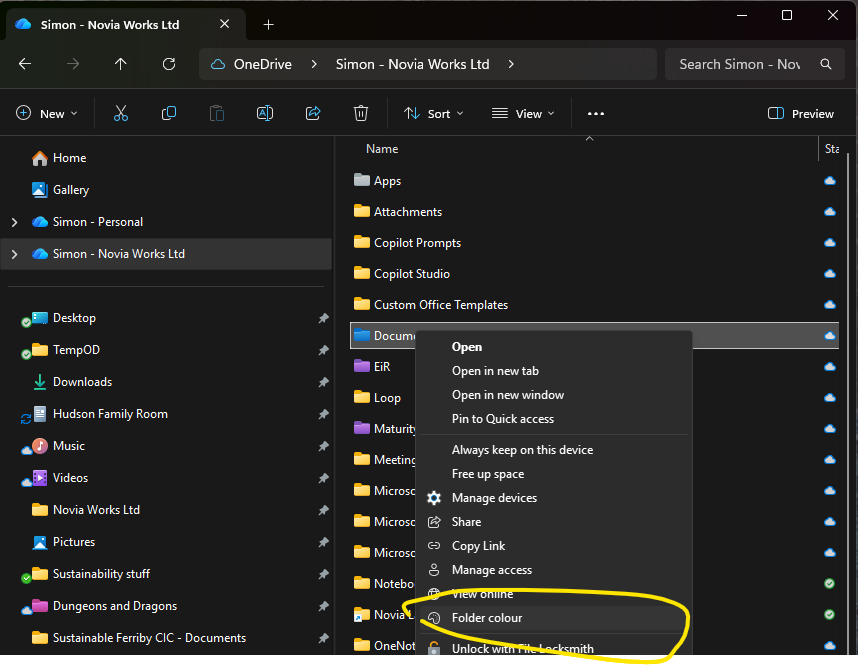
Modern SharePoint libraries may show “Folder colour”
Sometimes it absolutely will not. Here are some of the ‘not appearing here’ reasons:
- Classic experience – never supported
- List forms / classic document libraries – never supported
- A library has any custom forms or legacy web parts
Windows Explorer
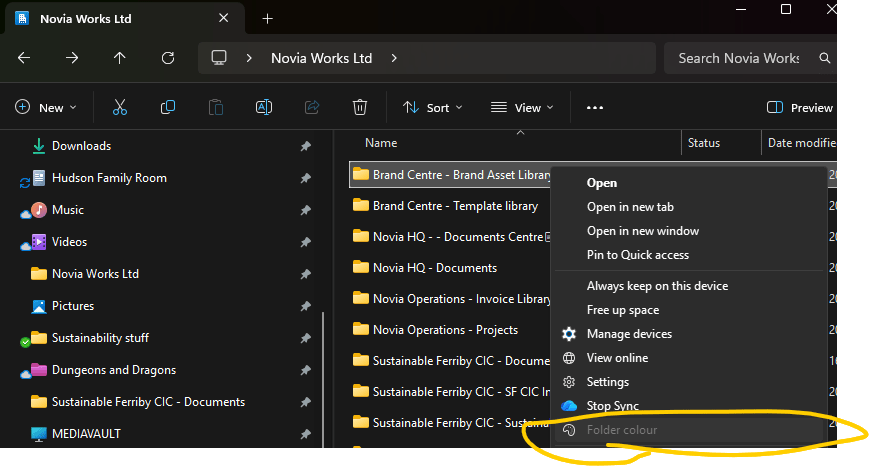
In Windows Explorer, sync’d SharePoint libraries appear as folders. However, these aren’t folders they’re libraries that happen to use the folder icon on the desktop. As a result, the colour option appears in the right click menu but is greyed out.
Note: I have enhanced menus turned on; your right click menu might be using the annoyingly limited default.
Teams Channels
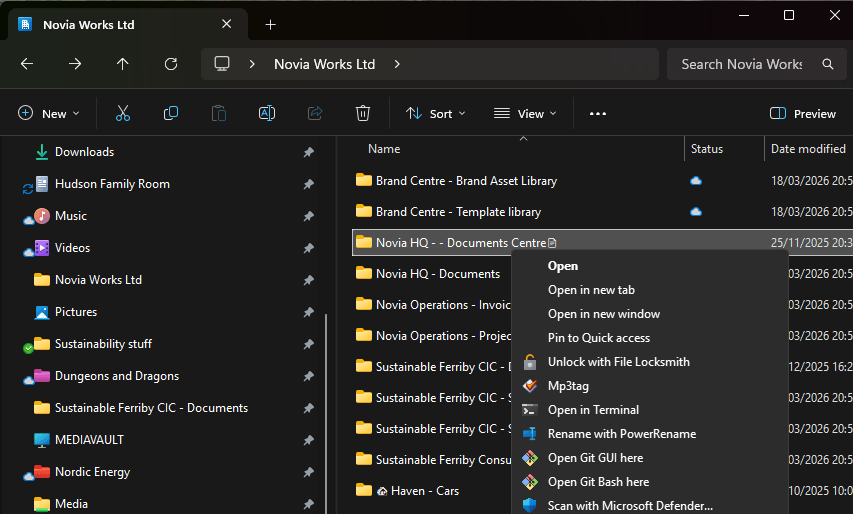
These also appear as folders in Windows Explorer. In fact, they are folders. When you create a team in Teams its File tab is really a SharePoint library and each Channel in the team is a folder in that library. However, these are actively managed by Teams/SharePoint (try deleting one of the channel folders and see what happens) and folder colours are once again not supported. In this case the menu item doesn’t appear at all.
Summary
Let’s be honest, consistency has never been Microsoft’s strongest suit. Different product teams sometimes do their own UI thing without checking what everyone else is doing; other times the budget runs out or gets refocused before the useful little features are implemented. The result is confusing UX, with little clarity on what and why something is or isn’t available (don’t get me started about Copilot!).
However, the bottom line is Folder Colours are:
- Great on OneDrive for Business
- Good in true folders in Modern SharePoint, but not for things that might look like folders but kind-of aren’t.
- Disappointingly incoherent in OneDrive Personal.

 Novia Works Ltd