
Categories
Microsoft Microsoft 365 Microsoft Office Microsoft Teams OneDrive SharePoint

Why can’t I Sync my Teams Files tab / SharePoint library?

Beware using both library ‘Sync’ and ‘Add a shortcut to OneDrive’ in SharePoint or Teams. It gets messy and things break.

Thankfully, it’s fairly easy to fix once you know what’s going on.

For several weeks I have been meaning to work out why a bunch of my synchronised libraries from Teams/SharePoint had stopped sync’ing.

Return to Old Kent Road, do not pass Go

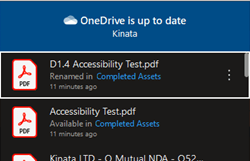
In Windows’ File Explorer the reassuring little cloud Status icons had disappeared for some libraries. The files were still there, but synchronisation wasn’t happening at all.

There were no errors showing in the sync client and everything worked fine in the browser. It was a bit of a mystery, but one I didn’t find time to look at until today.
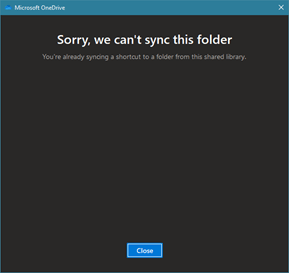
There wasn’t any hint online that I could find. The only lead I had to go on was a semi-helpful message when I tried to sync. It would be nice if these messages told you which shortcut, folder or whatever.
Nevertheless, I was able to track it down to a training session I had been preparing, where I introduced content managers to the handy ‘Add shortcut to OneDrive’ that now appears in libraries. I explained this feature as being useful for staff who struggle with the SharePoint thing and are happier with the simple OneDrive experience. Instead of adding the synchronised folder to the SharePoint cluster in File Manager it adds it to OneDrive for Business

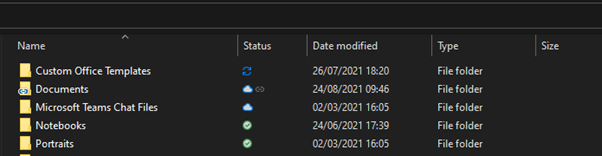
As you can see, there is a handy icon indicating that it’s a link and this was the final clue.

It would appear (though I have yet to find it documented) that this is an either / or scenario. Once you have synchronised a folder anywhere in a library you can no longer sync that library, though you can still add further OneDrive shortcuts.

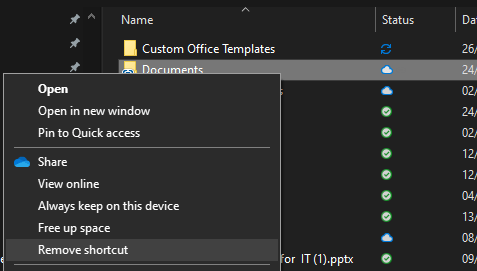
If you do need to do a standard Sync then you need to remove the OneDrive shortcuts. That’s pretty easy, fortunately. Just find the shortcut in the OneDrive cluster in File Manager, right click and choose ‘Remove Shortcut’, or use the Remove button in OneDrive in the browser. Note that you need to remove every shortcut before sync will work again.
The bottom line is, Either use ‘Sync’ Or ‘Add shortcut to OneDrive’, not both; that’s true for any given library, but it’s probably wise to apply it at a user level to avoid confusion.

Either use ‘Sync’ Or ‘Add shortcut to OneDrive’, not both

Also note that, under some circumstances, SharePoint will allow you to add a onedrive shortcut, even if the library is already synchronised (I think it’s because the sync client has had a hiccup), in which case it will then cancel the library sync – “Return to Old Kent Road, do not pass Go”

Simon's avatar

By Simon

Simon Hudson is an entrepreneur and health sector specialist. He formed Cloud2 in 2008 following a rich career in the international medical device industry and the IT industry. Simon’s background encompasses quality assurance, medical device development, international training, business intelligence and international marketing and health related information and technology.

Simon’s career has spanned both the UK and the international health industry, with roles that have included quality system auditing, medical device development, international training (advanced wound management) and international marketing. In 2000 he co-founded a software-based Clinical Outcomes measurement start-up in the US. Upon joining ioko in 2004 he created the Carelink division and, as General Manager, drove it to become a multi-million pound business in its own right.
In 2008, Simon founded Cloud2 in response to a need for a new way of delivering successful projects based on Microsoft SharePoint. This created the first commercial ‘Intranet in a Box’ solution and kickstarted a new industry. He exited that business in 2019, which has continued to grow as a leading provider of Power BI and analytics solutions.

In 2016, he co-founded Kinata Ltd. to enable effective Advice and Guidance in the NHS and is currently guiding the business beyond its NHS roots to address needs in Her Majesty’s Prisons and in Australasia.

In 2021, Simon founded Novia Works Ltd.

In 2021 he was invited to become Entrepreneur in Residence at the University of Hull.

In 2022 he was recognised as a Microsoft MVP.

In 2025 he founded Sustainable Ferriby CIC, a community energy not-for-profit to develop energy generation, energy & carbon reduction, and broader sustainability & NetZero projects in the West Hull villages.

Simon has had articles and editorials published in a variety of technology, knowledge management, clinical benchmarking and health journals, including being a regular contributor to PC Pro, as well as a presenter at conferences. He publishes a blog on areas of interest at noviaworks.co.uk. He is a co-facilitator of the M365 North User Group. He is a lead author and facilitator on the Maturity Model for Microsoft 365. He is the author of two patents relating to medical devices. He holds a BSc (Hons) in Physical Science and a PGCE in Physics and Chemistry from the University of Hull.

Simon is passionate about rather too many things, including science, music (he plays guitar and octave mandola), skiing, classic cars, narrowboats, the health sector, sustainability, information technology and, by no means least, his family.

Leave a comment