
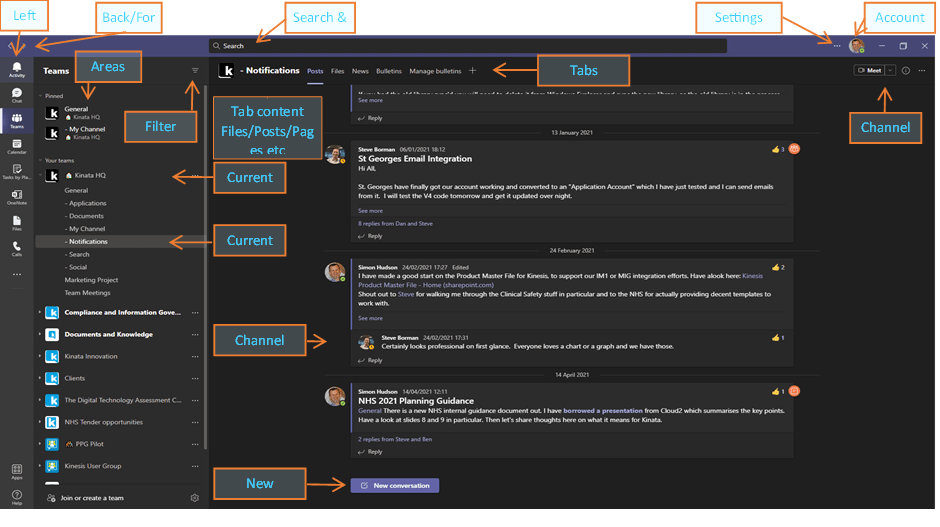
Unlike web pages, where navigation is via a hyperlink or an in-page menu, Microsoft Teams has a quite different navigation paradigm. Mostly this is fine, once you understand the interface, but there are still times when there is a need for explicit and ad hoc links to other parts of Teams.
For example, I might want to have a welcome page that provides signposting to key channels and tabs, and to other Teams Areas that team members might want to access.
It used to be possible to do this within the Wiki tab – it was pretty much the only thing it was useful for (see this post). However, the Wiki tab is going away (and not a single person shed a tear) – OneNote was always soooo much better. So, what are the options that remain?
There is a way. Use the Posts tab.
It goes a lot like this.
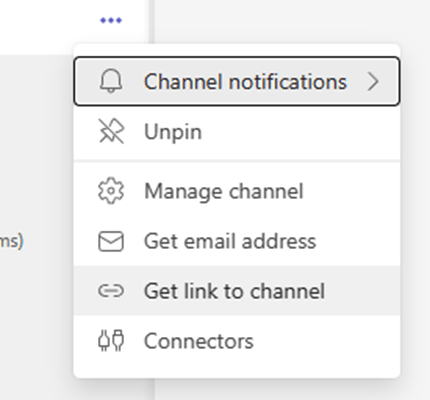
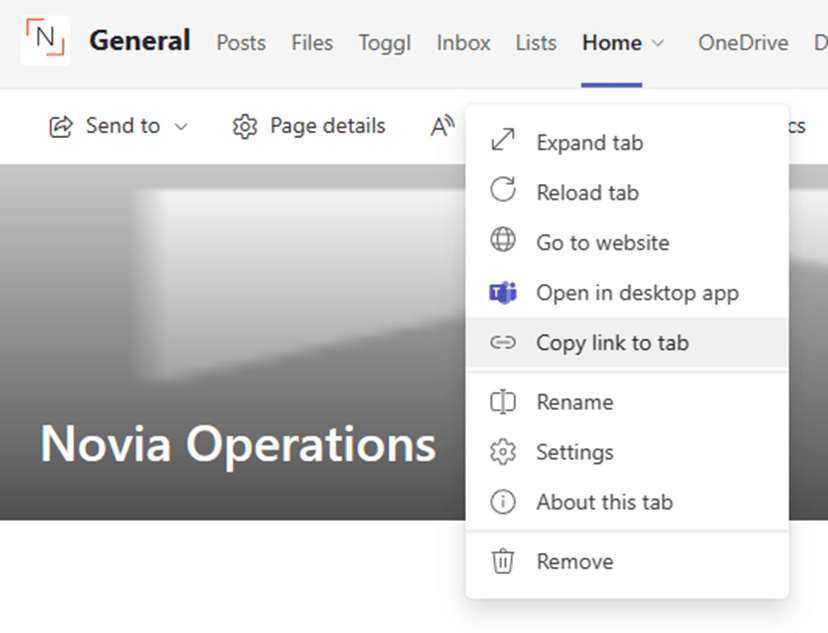
- Click the settings ellipsis (…) on the channel or tab you want to provide a link to and choose the Get link to channel / Copy link to tab. You should now have a link on the clipboard.
- Go to the Posts tab in the team and channel where you want to create the list of links/signposting.
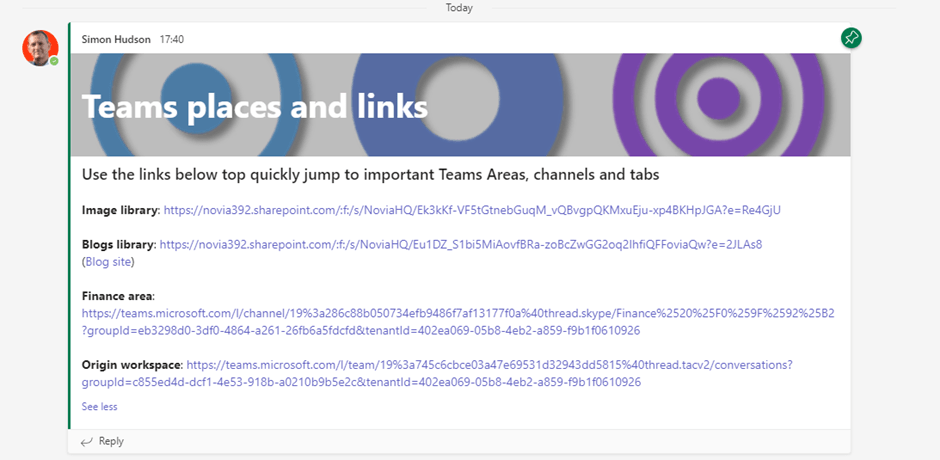
- Create a new post and turn on rich formatting using the ‘A’ Format icon. Ideally click the New Conversation drop down and set it to Announcement. Create your nicely formatted signposting post, with a headline and your link. Add more links as needed (you might want to open a second instance of Teams in a browser so you can grab and paste – or paste them into a document or OneNote first).
- Click Send. Now immediately mouse over the post and click the settings ellipsis and choose to Pin it.
That’s it.
When you need to add more, mouse over, open settings and choose Edit
Gotchas
Be aware that you still can’t create links within a web page that you have added as a tab nor in OneNote that will reliably open to the correct place in Teams. Also, there is no option to create a link to a Posts or File tab.

 Novia Works Ltd