

Although some people (Gen Z, people with dyslexia, etc.) favour interacting with video for their learning and communications, it can be a lot faster and more engaging for others to consume the written word. This blog explores how to use AI to change the former into the latter.
Let’s start with the actual scenario that prompted this blog…
We received a Github comment notification on the increasingly weighty Maturity Model for Microsoft 365 (I am a lead contributor, alongside Marc Anderson, Simon Doy, Sharon Weaver and Emily Mancini). Rather than type it all, the protagonist in this story (whom we shall call Kevin, for that is his name 😊) provided a link to a 13 minute video of comments, published to YouTube. A perfectly reasonable thing to do (the MM team is very grateful for the feedback).
It happens that I read about 4 times faster than I listen or watch, plus I am far more engaged /less distracted when I do. Often I simply skip the video and skim read the transcript. Video can be fast to create, but slooowwww to consume.
In this case the transcript was pretty ‘dirty’, so somewhat taxing to read and understand:
0:0        hello um whoever is is watching this
0:1        video I wanted to put everything in
0:1        writing in the comment and I thought
0:1        it's it's going to be too long uh on
0:1        Microsoft stream I only have 15 minutes
0:2        so you'd probably be better off uh
0:2        watching the video than than reading
0:2        everything I wanted to share uh but I
0:2        did let the uh the one
0:3        I love the maturity model on on the
0:3        comments in written so that's really ni
0:3        stand point maybe that you can relate uh
0:3        um what I'm about to say to to why I'm
0:4        saying it so I'm not very sure okay
0:4        first point on a topic that you probably
0:5        uh are um you're probably already
0:5        thinking or maybe you already done
0:5        something for it's the number of
0:5        competencies uh first of all
1:0        I do think although I love the content
1:0        of all of it and I do love more content
1:0        is is great but I do think the more
I wondered whether I could easily clean it up using Copilot or ChatGPT.
This blog is all about what I learned. It’s often better to learn from someone else’s mistakes.
How to convert transcripts to readable text
Attempt 1: Copilot in Word – sidebar prompt
My first attempt was to paste the full transcript into Word; all 280 lines of it.
It became immediately obvious that it would be better without the time stamps; handily YouTube provides a Timestamp toggle in the transcript options menu
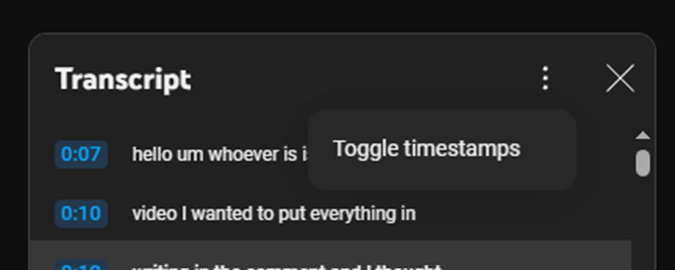
Repasting the de-timestamped transcript into Word I crafted the following prompt in the Copilot sidebar (my typing sucks at times):
Tidy up the document and elinimate unnecessady line break
Copilot wasn’t happy with that:
Unfortunately, I can't make changes to the document itself, but I can answer general-purpose questions or those about the document.
Attempt 2
I tried again:
Create a new version of this, summarised, todied up and with a list of key points and actions
Nope, Copilot still doesn’t like it:
I'm sorry, but I'm not able to edit the document directly. However, I can provide you with some general tips on how to tidy up a document and eliminate unnecessary line breaks in Microsoft Word:
To remove manual line breaks, you can use the Find and Replace function. Press Ctrl+H to…
Attempt 3: Copilot for Word – Inline prompt
The sidebar is really for asking things about your document, not interacting in the document. For that you have to use the in-page Copilot prompt.
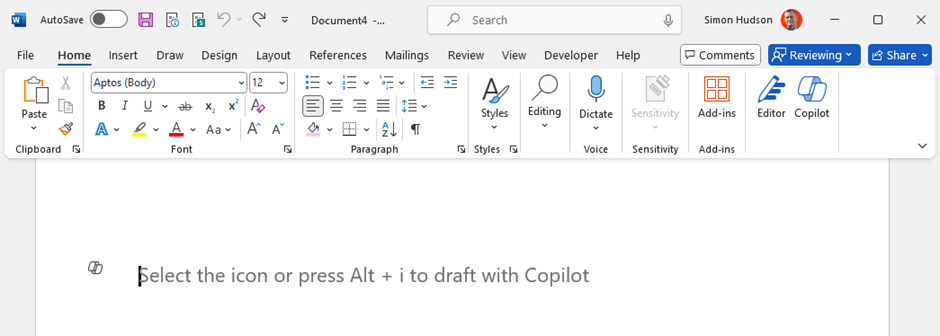
I pasted the transcript into Word again, and then tried a Copilot prompt at the top and the bottom of the transcript:
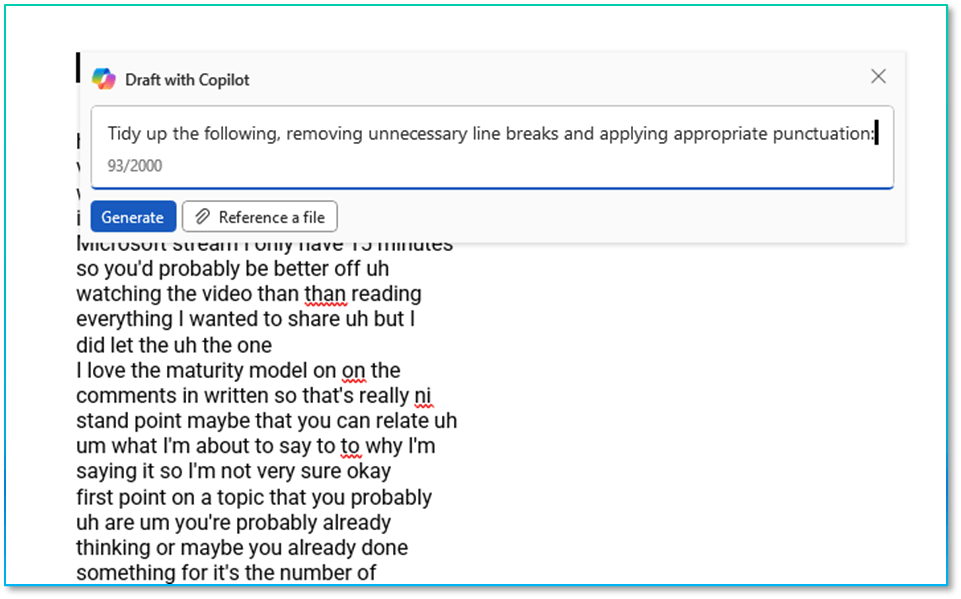
After a few moments of expectant excitement I was once again disappointed, as this only analysed the first 3 lines, even when asking it to analyse all the text:
Attempt 4
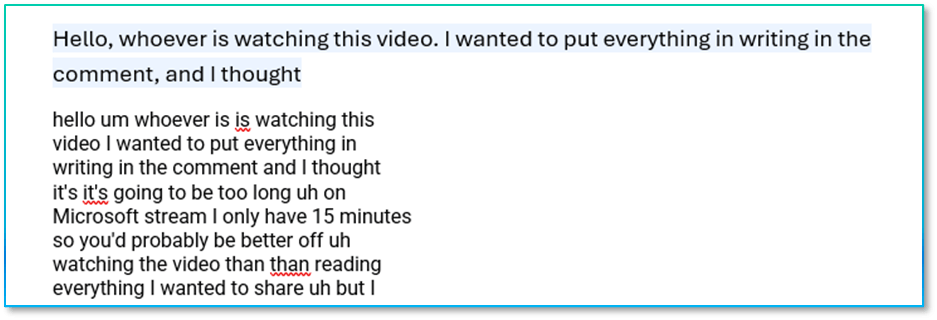
I reproduced my tidy-up prompt and this time pasted the transcript text into the dialog box.
Tidy up the following, removing unnecessary line breaks and applying appropriate punctuation:
hello um whoever is is watching this
video I wanted to put everything in
writing in the comment and I thought
it's it's going to be too long uh on

Note the Exceeded number of characters allowed warning.
Excellent, I had now found 4 ways that wouldn’t work; I was closing in on a solution.
Attempt 5: ChatGPT
The Inline prompt seemed to have merit, but Copilot wasn’t willing to parse the whole transcript. Perhaps ChatGPT 4.o would do better. I logged into OpenAI excellent AI and tried again, this time thinking to mention that it was a YouTube transcript:

Success! The result was impressive:
Hello,
To whoever is watching this video, I wanted to put everything in writing in the comments, but I thought it was going to be too long. On Microsoft Stream, I only have 15 minutes, so you'd probably be better off watching the video than reading everything I wanted to share. However, I did leave the maturity model comments in writing, so that might provide some additional context to what I'm about to say.
First, let's talk about the number of competencies. Although I love the content, I think the more competencies there are, the less usable the model becomes. It's a lot of information for anyone trying to get acquainted with the model, and you don't really know where to start. The question always comes up: how do you organize this, since everything is interconnected and interrelated?
This is really rather good. The output was a first person rewriting of the transcript, retaining the author’s tone of voice and filling in the gaps while eliminating the verbal ‘noise’.
I copied the output and pasted it into Word for further refinement.
Attempt 6: Copilot for Word (again)
I had another bright idea. Maybe I could save the transcript as a Word document in my OneDrive temp folder and reference it as the source document for Copilot in Word. I saved the transcript as ‘MM Comments Kevin Stocky.docx’
I then created an inline prompt, this time refencing the saved file
Rewrite / MM Comments Kevin Stocky.docx transcript using correct punctuation and formatting
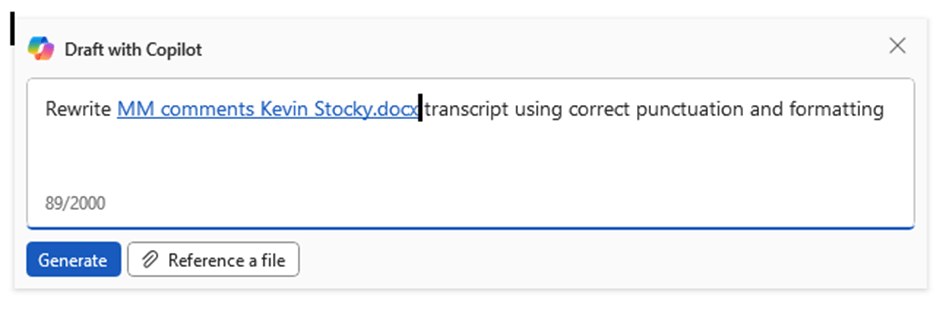
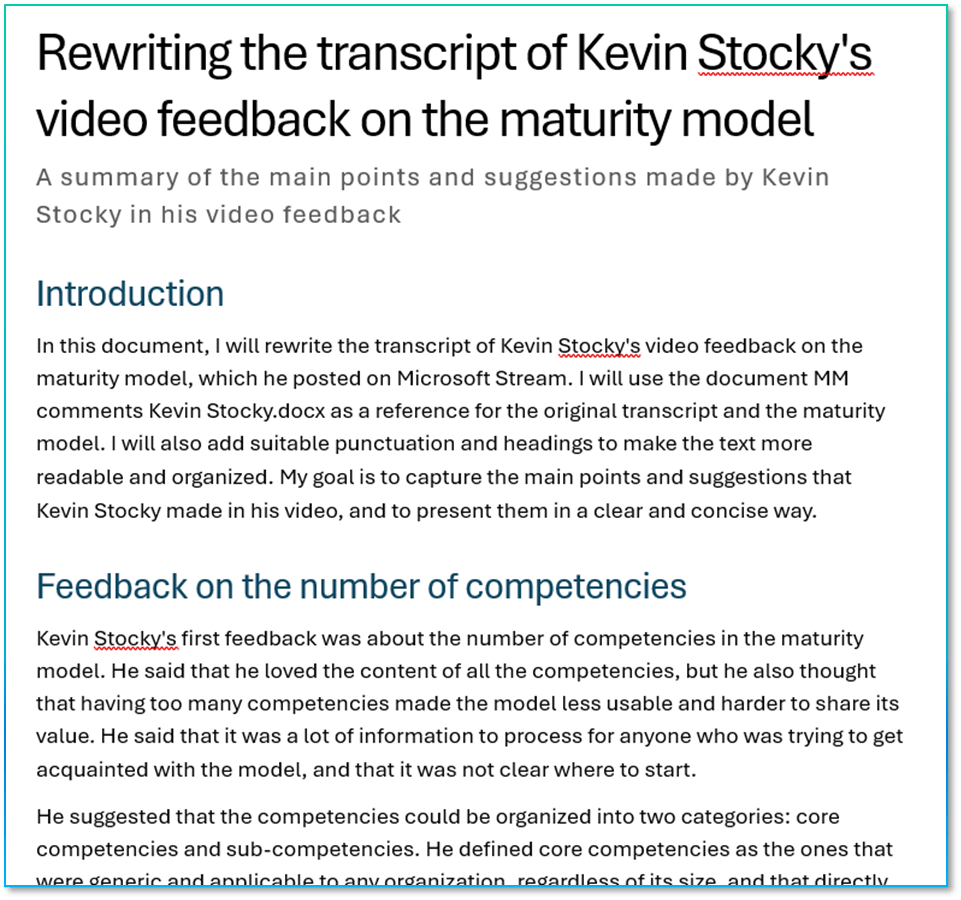
This generated an equally excellent output, if in a different style. It was in the third person, describing what the author has said, rather than rewriting what he said. The resulting document was well presented, complete with headings and an introduction of what it had done, followed by a well laid out analysis document with appropriate section headings.
On the whole, I preferred this version as it was easier to understand the points being made about each subject. It’s this that I would want to send on to my collaborators for their information and comment.
Attempt 7: Copilot in Edge
Belatedly, I realised I could probably have saved myself a lot of time by using Copilot in Edge to analyse the transcript directly from the web page. The prompt was pretty easy:
Rewrite the displayed YouTube transcript using correct punctuation and formatting
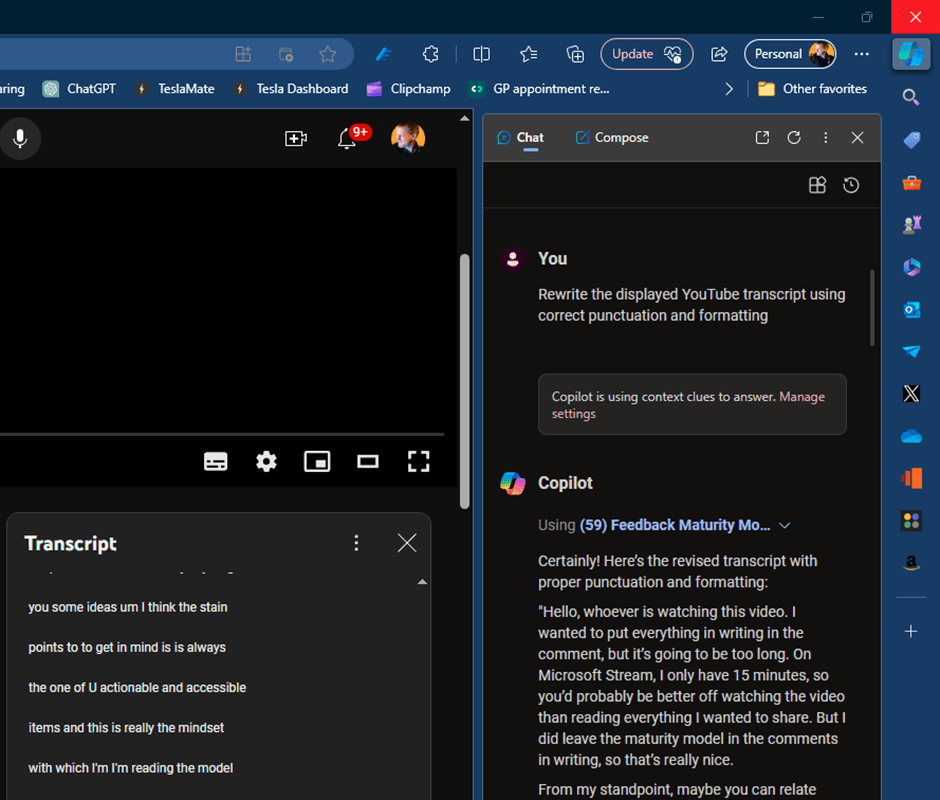
This worked well producing a very similar style output to the ChatGPT response; first person, tone of voice etc. I could have pasted it into Word and manually added headings, or used Copilot in Word to improve readability, identify actions points and create a summary.
So I did.
Create a summary, headings and a list of key points and actions
It’s slightly annoying that it didn’t insert the headings into the body of the document, but it created some nice summaries

Conclusions
It can be a lot faster and more engaging for many people to read a document of web page than to sit through the relatively slow video experience. While a lot of emphasis is on creating engaging video and audio content from text, there is a strong use case for creating digestible prose from video and audio content.
It’s worth spending the time learning how to do this, which tools to use where and what each tool (including each variant) does well, badly or not at all.
Overall, AI provides a potent ability to rapidly rewrite messy transcripts from video or audio content into something far more professional. You have a choice of output styles from the transcript depending on the tool used; readable prose (ChatGPT and Copilot in Edge) or a report style analysis. Both have their place.
End Notes
Note that Word won’t show you the prompt you used in-line after it has finished responding to the prompt.. This is bad and inconsistent with the behaviour of Copilot elsewhere (including the sidebar in Word). It also undermines one of the principles of the Cognitive Business Maturity Model, which is to capture and reuse effective prompts. Even worse, if you are fed up of waiting the Copilot to complete its task (we all have such short attention spans) it will often just stop generating the updated content and disappear. Not always, but often. Which means you have lost your carefully crafted prompt.
Never use ChatGPT for rewriting confidential stuff. This is bad. It doesn’t have the governance and security protection that Copilot has, and your content can be used for training their model or information future answers. Copilot never does that.
If you want to get to grips with Copilot for Microsoft 365 then start here: https://www.microsoft.com/en-us/microsoft-365/enterprise/copilot-for-microsoft-365
and then dive into Copilot Lab
Today’s AI is the worst you will ever use. It’ll be better tomorrow.

 Novia Works Ltd