

The SharePoint Brand Centre: A Comprehensive Guide
Brands encompass more than just colours and logos; they embody the values, style, and culture of an organisation. Even small organisations invest in their brand and many use brand as a key differentiator.
Websites, advertising and public media have long been the public expression of brand, with internal communications and systems receiving secondary attention. Nevertheless almost every organisation wishes it could do more to represent their brand effectively internally. Marketing & communications teams create brand guidelines, document templates and media alongside published statements of values etc.
Despite this attention, branding has a history of being challenging to do well using SharePoint and the wider Microsoft 365 platform. This is about to change…
The SharePoint Brand Centre (or Center if you must) began appearing throughout September 2024, following announcements the previous year. It offers organisations a central place to manage and internally promote their brand, while also enabling brand fonts and themes to be applied throughout SharePoint and Viva Connections.
This article explores it in more depth; helps you get up and running and talks about what it can, and currently cannot do.
- What is Brand Centre?
- Enabling and Configuring Brand Centre
- Inside Brand Centre
- Font Management
- Colours
- Asset Libraries
- Additional Libraries
- Limitations and Workarounds
- The Future of Brand Centre
What is Brand Centre?
SharePoint Brand Centre is a site template with some custom features that provides a central place to both promote your brand to staff, and also to define and store your brand assets such as colours, fonts and graphics files. Furthermore it aids with implementing these in SharePoint and Viva Connections (with a promise of wider reach into Microsoft 365 in future).
It comes with a single user library to store your brand assets and documents, plus a predesigned home page and a small set of sample pages for showcasing brand principles, values, and examples of brand expression in action.
Site owners have access to manage the underlying brand fonts and colours via the confusingly named ‘Brand center’, also known as the Brand Centre app.
Enabling and Configuring Brand Centre
The Brand Centre capabilities are not enabled on Microsoft 365 tenants by default. You have to switch the feature on before it appears at all:
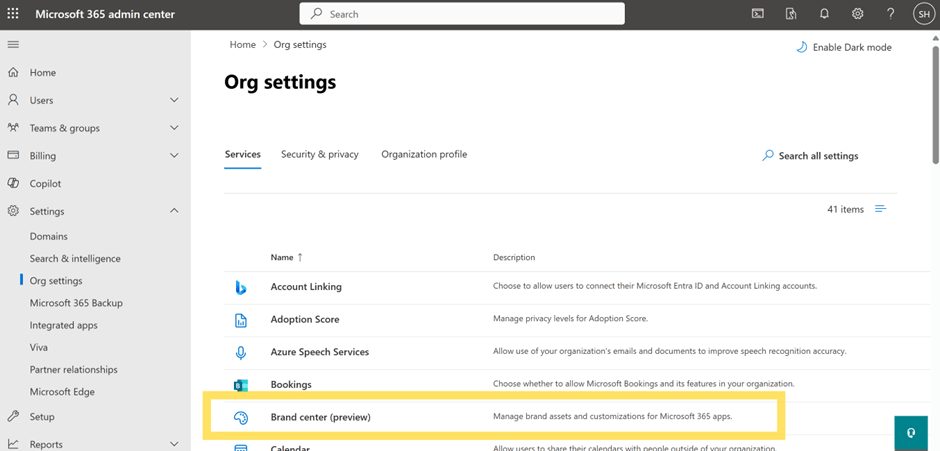
- In the Microsoft 365 Admin Centre (not SharePoint Admin), go to Settings > Org settings.
- Select Brand Centre (preview).
- Activate the Brand Centre app for your organisation.
- You can manage permissions from the SharePoint admin centre or in the Brand Centre site. Choose who can edit things carefully.
Now it’s enabled, in SharePoint you can create your actual Brand Centre.
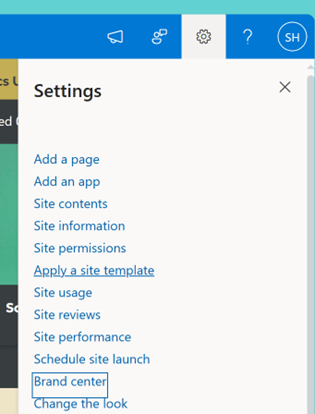
If you haven’t already got one simply create a new SharePoint site and choose the Brand Centre template. Alternatively, since it’s ‘just’ a Site Template, you can add the Brand Centre to an existing site which hosts your Asset Libraries using the “Apply a Site Template” function in the site settings.
Note that you can only have a single Brand Centre per tenant (for now). Complex sub-brands or discretely branded divisions on your primary tenant are going to be a bit of a problem.
Inside Brand Centre
Site Contents
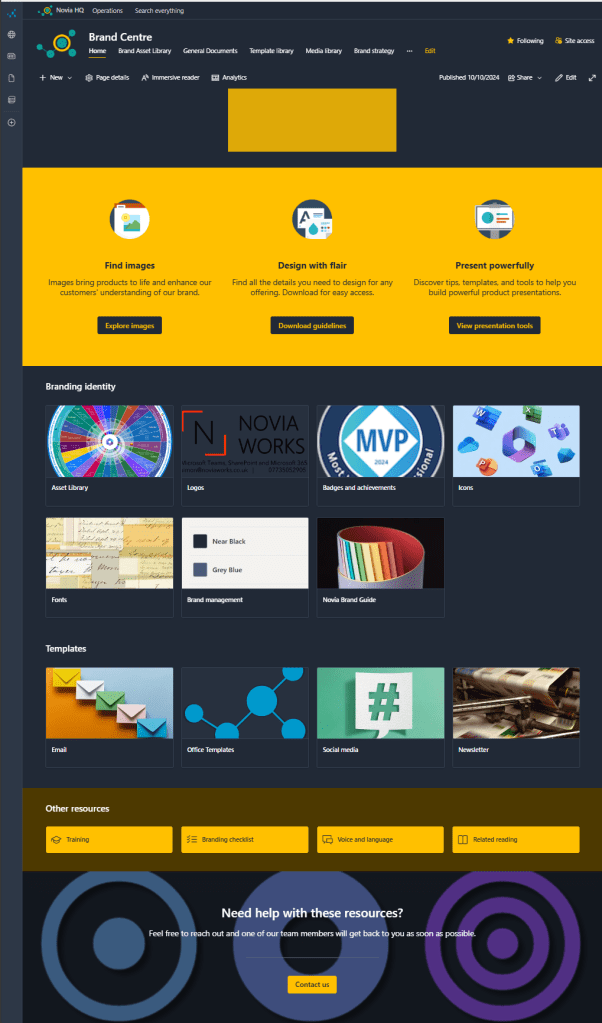
Your shiny new site comes with a reasonably attractive home page prepopulated with web parts that you can repurpose, point at sensible content (since all the links point back at the Brand Centre home page) or scrub and rebuild.
I mostly repurposed everything; it’s fine to get things started and you can evolve it easily rather than falling into weeks of annoying consultation which will end up with what’s already there, or something worse. IMHO. 🤷♀️
There are three further pages with sample content for communicating your brand:
- Our Brand Strategy
- Marketing Expression
- Help Centre
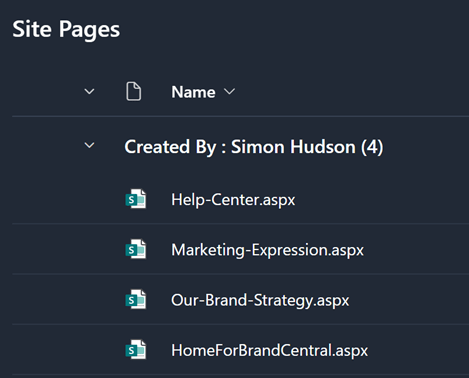
Again, they are pretty enough, but don’t contain much content of value.
I tend to repurpose (and rename) these to communicate core sections of the current Brand Manual. Commonly, I have:
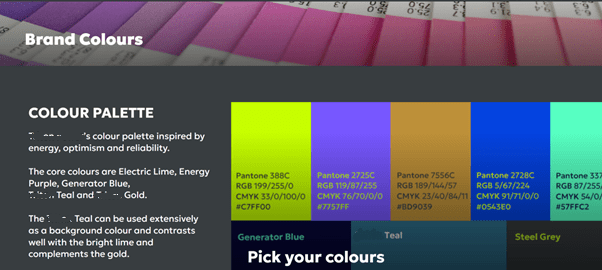
- Brand Colours – which explains the suite of colours (with RGB, HEX and Pantone references) and how to use them.
- Brand values – core company values or principles and the tone of voice to use in communications.
- Graphical Expression – Guidance on use of logos, graphic elements, imagery and layout.
Font Management
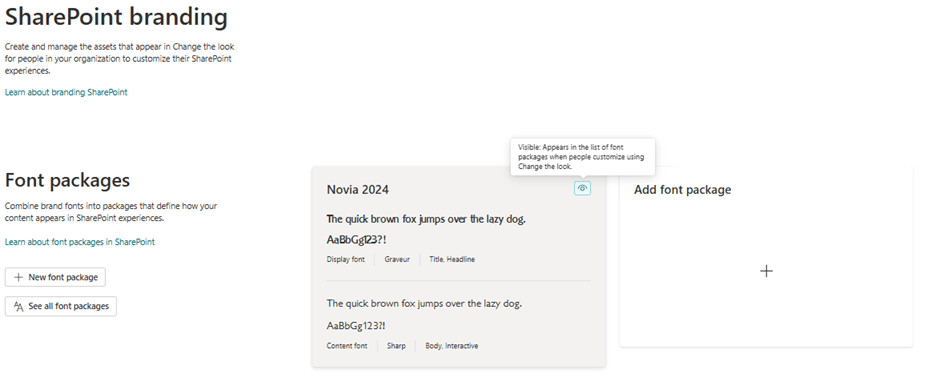
The Brand Centre app allows you to upload custom fonts and use them in SharePoint, Viva Connections and, eventually, in other Microsoft platforms. Fonts are stored in a custom SharePoint library.
Fonts appear in various (most) SharePoint web parts and Viva components, but not all. They do not appear wherever a custom font might interfere with the functioning of a component; which seems sensible. There is a list of supported web parts here
Note that there is currently no means to delete uploaded fonts. Instead, you can set them to “Not Visible,” which hides them from everyone except the Brand Centre site owners.
You can download and upload fonts from Windows Explorer by accessing the C:\Windows\Fonts directory. You can also access fonts from the Microsoft Typography site. There is a handy Microsoft Learn article on Brand Fonts that’s worth reading.
Note that there is currently no means to delete uploaded fonts.
Font Packages
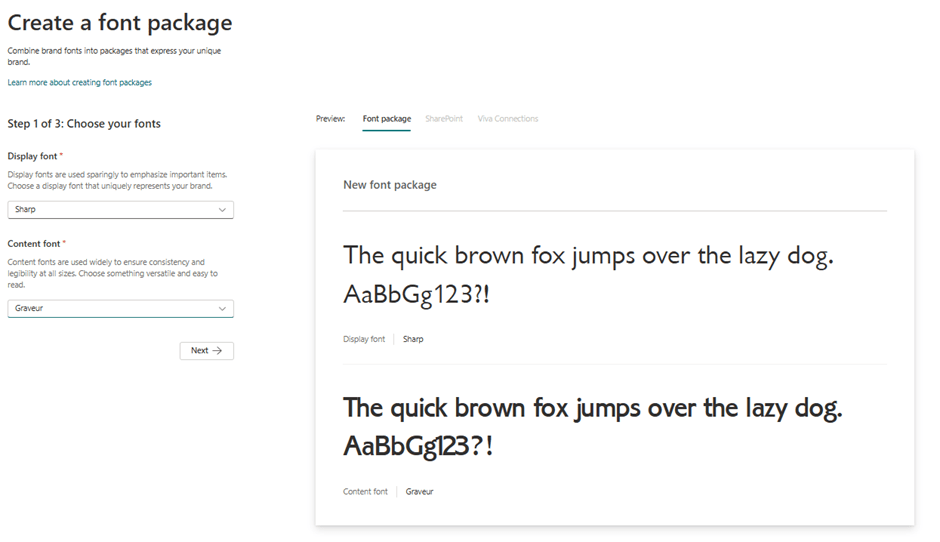
Once you have your preferred fonts installed in Brand Centre app it allows the creation of Font Packages; these are one of more collections of fonts that people can use to style their pages (and more in future) with correct, on-brand, use of the custom fonts.
Microsoft provide a set of predefined packages. Once you have played with them to understand how they work and where you would use them you will probably want to set them to hidden; you are only going want people to choose from your packages.
Creating Font Packages is all pretty straightforward once you have your chosen fonts available. Start by specifying your main Display font (used for emphasis) and Content font (used for readability). Then there are four font slots to set up for your SharePoint / Viva Connections experience: Title, Headline, Body and Interactive. You can preview them before adding a package name and publishing the package. This isn’t as interactive as one would hope, you change stuff, then preview, then go back to the previous screen and change stuff again.
A Microsoft Learn article goes into all this in more detail.
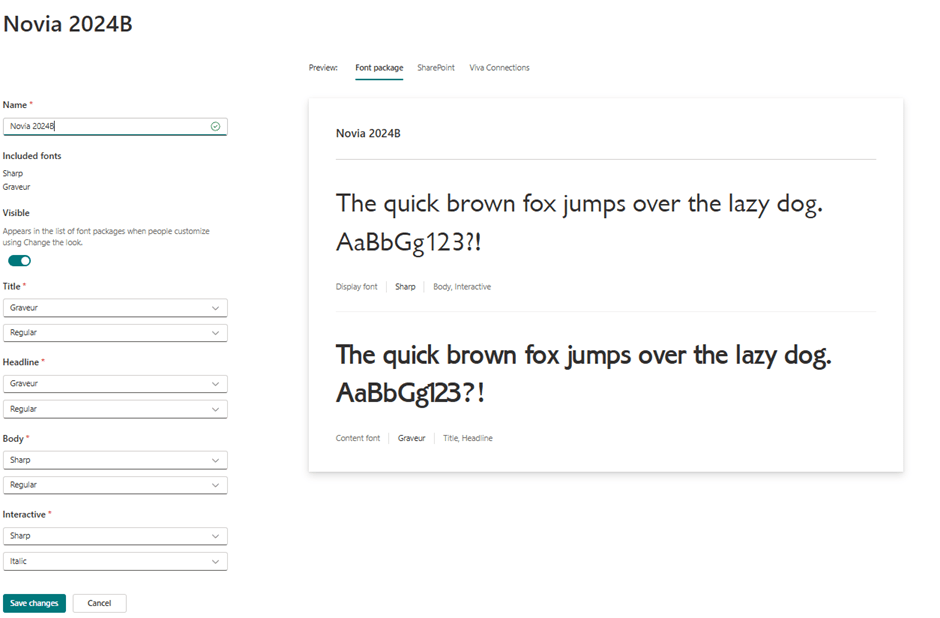
Don’t forget about turning off visibility for the existing packages. I’d suggest you do that to the defaults right now (adds a To Do item to follow own advice).
Colours
Next up, colours (or color if you can’t afford to use vowels correctly).
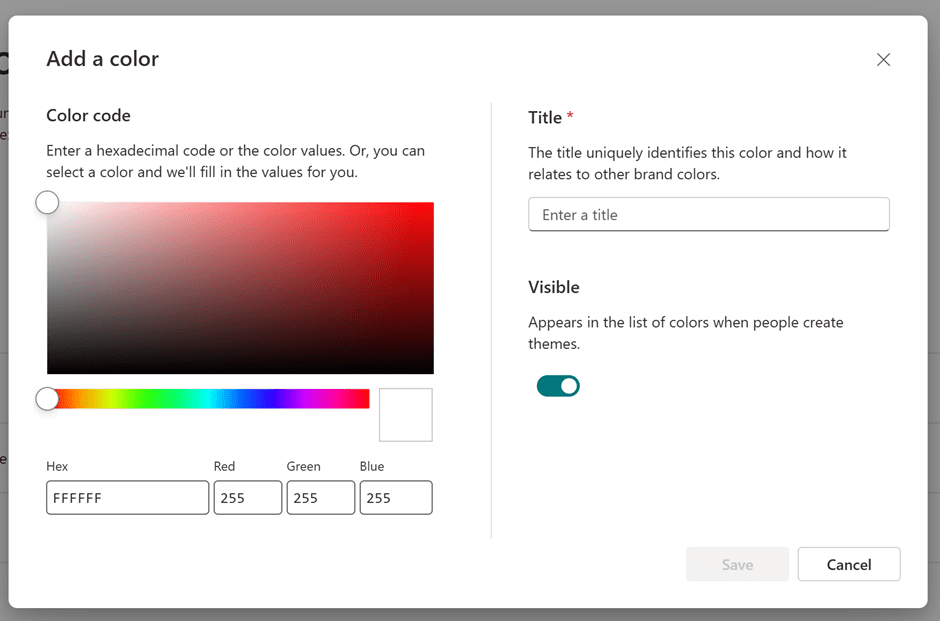
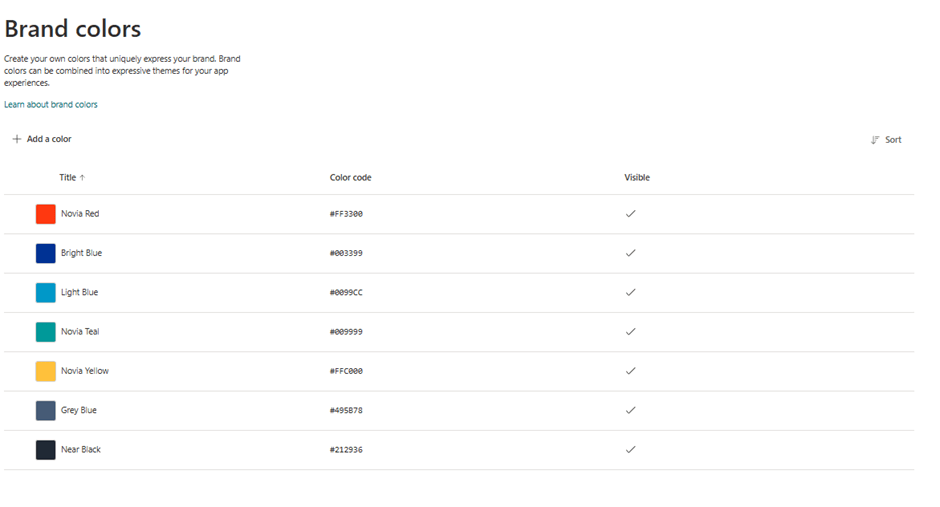
The site owner-only Brand Center has a custom list where you can add all your brand colours. It’s as simple as defining the colour using the colour map or, more likely, entering a Hex or RGB code and giving your colour a name. Like everything else, you can set the colour to Visible, or not, thereby hiding colours when they fall out of fashion.
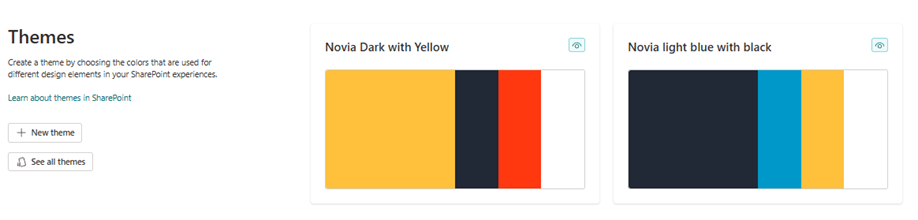
Sadly, there is no option to add any further categorisation to colours you create, so you can’t provide guidance on which colour to use for what. This shortcoming is somewhat alleviated using themes (see below).
Once you have added all your colours you will see them displayed in the list with a little square of the appropriate colour. Back in Brand center there is a nice web part that shows a selection of these.
Creating Themes
While we are on colours, it’s worth knowing that you can suppress the predefined themes that Microsoft include. It’s a simple bit of PowerShell:
Set-SPOHideDefaultThemesDon’t forget that you can also apply your theme colours to section backgrounds, or even your own custom images, though your themes may not be as well represented as you would expect in the themes choices.
Asset Libraries
The SharePoint Organization Assets Library (OAL) is used to store and manage templates and images that site owners and users might want to add to their sites. Initially these are just libraries, but once you assign them as OALs they become content sources for SharePoint and add an additional choice to the SharePoint web part image browser, called Your Organization, in which you will find tiles for each OAL.
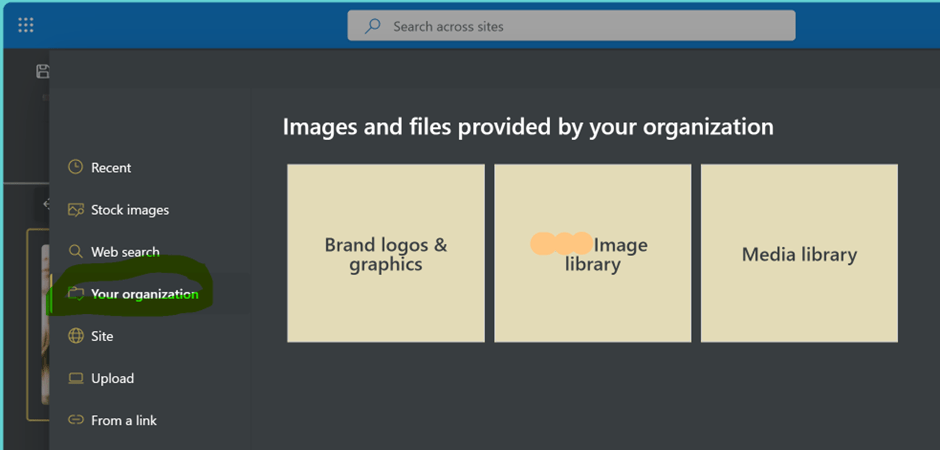
You can have OALs elsewhere in SharePoint, but there is a lot of value in having them managed by the folk responsible for branding.
Brand Centre comes with a single library that contains a mixture of assets and other content; I recommend creating new libraries to suit your needs, as below.
Libraries in the SharePoint Brand Centre are not automatically set as OALs (Organization Assets Library), so you need to delve into PowerShell to manually configure them. Here’s how using PowerShell:
Add-SPOOrgAssetsLibrary -LibraryUrl <"URL"> [-ThumbnailUrl <"URL">] [-OrgAssetType <ImageDocumentLibrary or OfficeTemplateLibrary>] [-CdnType <Public or Private>]NB. You MUST put the two URLs in quotation marks and MUST NOT have a trailing / in the URL. The example script on the Microsoft Learn page is incorrect, though the rest of the article is useful. A well-formed PowerShell script should look like:
Add-SPOOrgAssetsLibrary -LibraryURL "https://MyTenant.sharepoint.com/sites/BrandCentre/AssetLibrary" -ThumbnailURL "https://MyTenant.sharepoint.com/sites/BrandCentre/AssetLibrary/MyAssetLibraryLogo.png" -OrgAssetType ImageDocumentLibraryDon’t forget to create thumbnail images for each OAL (like I forgot to do before taking the screenshot – adds another thing to his To Do list. ) These must be stored on the same site as the library; grab the path to the file to insert into the script below. The minimum size should be 300×300.
Script to update thumbnail URL:
Set-SPOOrgAssetsLibrary -LibraryUrl <String> -ThumbnailUrl <String>).You can leave out the CDN switch, in which case it defaults to Private.
If you want to know what you have set up as Organsiation Asset libraries use this script:
Get-SPOOrgAssetsLibraryAdditional Libraries
Expanding your Brand Centre with additional libraries can enhance its functionality. Here are some suggestions:
- Brand Guidelines Library: Store all your brand guidelines, style guides, and best practices documents.
- Marketing Collateral Library: Keep a collection of brochures, fliers, posters, and other marketing materials.
- Video Library: A separate library for all your video content.
- Font Library: A dedicated library for all approved fonts.
- Template Library: Store templates for PowerPoint presentations, Word documents, etc.
- Photography Library: Curate a collection of approved photos that reflect your brand’s image.
Note
- You need E3 or higher licences to use OALs in PowerPoint on the web, it’s currently not available in Word or Excel on the web.
- It can take several hours for the organisation assets library to appear to desktop apps, and users need at least read permissions on the root site.
- You must use actual template file formats, i.e.: .xltx, .dotx, .potx
Limitations and Workarounds
The SharePoint Brand Centre does have some limitations.
General:
- Single Brand Centre: Organisations can only have one Brand Centre per tenant, which might limit larger organisations with multiple brands or sub-brands.
- Site Customisation control: The forthcoming Site Customisation feature has no controls that lets M365 admins set which sites can and cannot deviate from the brand. While it may be unnecessary or even undesirable for some team sites to slavishly adhere to branding requirements, equally all the sites that form part of the core intranet should. Currently the only remedy is to either not use the branding tools, or create a company policy on site customisation (and carry a big stick).
- Integration: Integration with the wider Microsoft 365 services and applications is very much still a work in progress.
- Asset libraries: Organisation Asset Libraries must still be declared via PowerShell, which means a chat with IT every time you create a new library. There really should be a tool for this in the Brand Center. (Top tip: make sure you also create and share a suitable image for each asset library with the IT folk)
Brand Centre (the management tool) issues:
- Partial Font Management: The Brand Centre allows for some font management but doesn’t offer full control over all font customizations.
- Responsive design: The user interface isn’t fully responsive, leading to inconsistent experiences across different devices.
- Navigation: There is no direct means of navigating back to the host site. It’s a bit rubbish in that way.
- Colour and Font display: You can’t repeat the rather nice brand colours list, or the list of fonts elsewhere in your user accessible brand site. I had to take screen shots to show the team what those colour values etc are.
- Visibility Control: Controlling the visibility of brand colours for different sites is not fully developed yet.
- Wider M365 Integration: Brand colours are primarily designed for SharePoint and Viva Connections, with full integration with other Microsoft 365 services still in progress.
Despite these limitations, the Brand Centre provides a valuable, central location to manage and maintain consistent brand colours, tell people about the brand and provide a centralised component of the communications strategy.
The Future of Brand Centre
The SharePoint Brand Centre is continuously evolving, with several exciting updates on the public roadmap:
- Enhanced Font Management: Improvements to font customization options.
- Expanded Integration: Full integration with other Microsoft 365 services.
- Multi-Brand Support: Plans to support multiple Brand Centres per tenant.
Hopefully they will also sort out the niggles.
In the meantime get stuck in. If you are in Communications and Marketing get your lovely IT folk to help you get it set up. If you are IT show the lovely Marketing and Comms folk this great new tool you have turned on for them.


2 replies on “Unlocking SharePoint’s Brand Centre for Your Organisation”
[…] been doing quite a bit with the new SharePoint Brand Centre. One of the prebuilt libraries in the brand centre is a template library and the nice Microsoft […]
[…] wrote a detailed article on it when it launched. I guess the good news is that it’s still up to date, since there have […]