

I wrote a bunch of articles on Skills before skill.md files were actually available in SharePoint. Inevitably, things change and real-world information is now available. This is the first of what are probably many updates, ‘How to’ guides and insights. The next heading says it all…
Enable the skills repositories
We now know how skill.md files are stored. At some point I’ll write an article on why they should be stored in a GitHub repo and the governance needs that wrap around them, but today’s reality is they are stored in a special, hidden library in a SharePoint site. That library is called Agent Assets. and it’s hidden in the clunky old backend of every SharePoint site. To get to it you need to be a site owner. Here’s what you need to know/do:
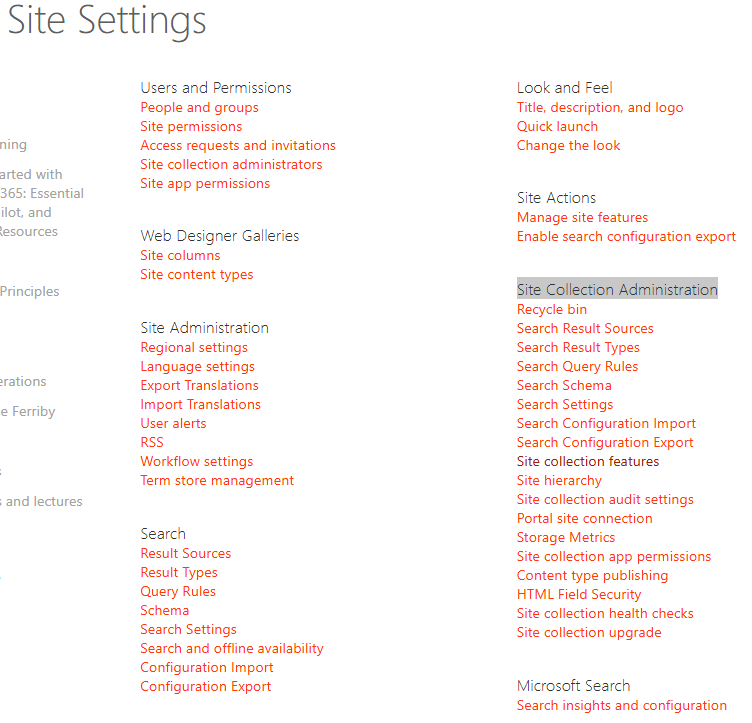
- Starting with your home site in your SharePoint tenant, go into the old backend of the site via Site Information > View all site settings
- Under the Site Collection Administration heading click Site collection features
- At the top you will see Agent Assets. Activate it.

That’s it, the skills file repository is now enabled. It would be a good idea to do this on the other sites where you will want to deploy skills. There’s probably a PowerShell script for that.
Agent Assets – content and structure
Skills follow the agentskills.io specification. Each skill is a directory inside Skills/ containing a SKILL.md file:
Skills/└── skill-name/ └── SKILL.md # Required
The directory name must exactly match the name field in the frontmatter. For example, a skill with name: copy-editing must live at Skills/copy-editing/SKILL.md.
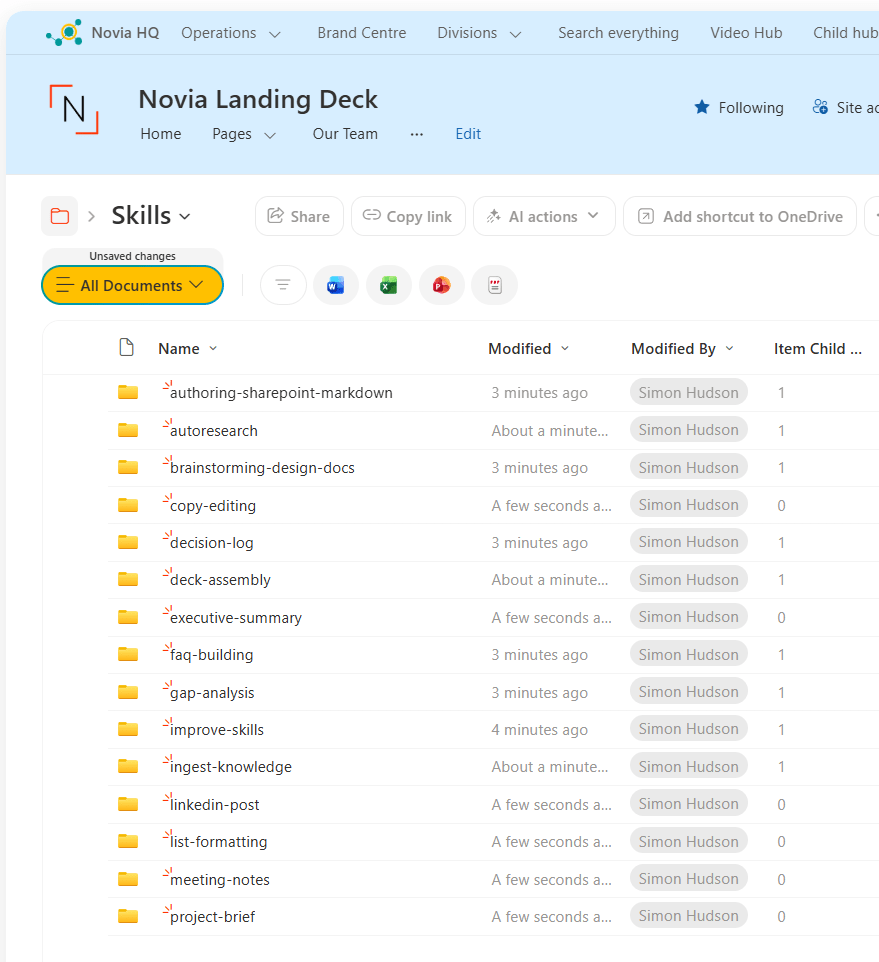
Agent Assets is prepopulated with 2 folders, Plans and the aforementioned Skills, into which our named folders will be added for each skill we add to the site.
You may wonder what Plans is for. The Plans folder is where Copilot Studio stores agent plans (structured task reasoning), but not skills or knowledge content. It’s used by Copilot Studio/SharePoint agents to store machine‑generated and system‑managed planning artefacts that represent how an agent intends to carry out a task, rather than what it knows or what it is skilled at. It’s best to not touch it; it’s there for the system rather than us mortals.
| Do: | Do not: |
|---|---|
| Ignore the Plans folder operationally. Leave permissions untouched. Treat it as runtime scratch space. Focus all intellectual effort on: Skills, Prompts and Grounding content. | Store documentation there. Reference it in skills. Attempt to structure or name files. Base governance decisions on its contents. |
Grab some skills
Zach Rosenfield has very graciously provided a bunch of skill.md files to get us started, over in Github. His AI in SharePoint repo is stuffed full of useful and interesting skills.
Each skill lives in its own folder and is installed by uploading that folder to the Skills library in SharePoint. You could install the skills one at a time by creating a folder with the same name as the skill, then create a new file called skill.md, then open the file (which you can how do in SharePoint) and do a copy and paste. However it’s probably quicker and less error prone to do a bulk import:
- In GitHub, open the repo root
- Select Code → Download ZIP
- Extract locally
- Open the Skills folder and upload each skill folder you want to use.
- This preserves structure and filenames, which matters for reuse later
I didn’t use everything. I also added the styling skills to our Brand Centre rather than our HQ site
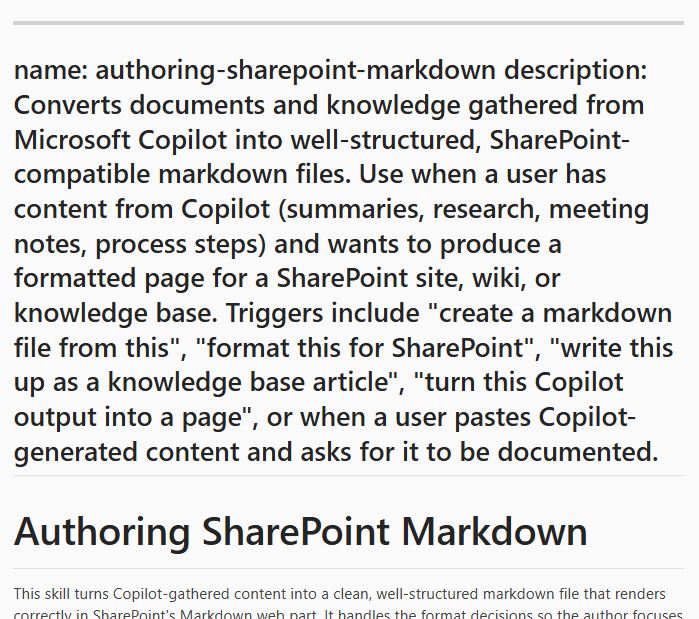
That done you should open one and have a look. SharePoint now has a neat .md file viewer that shows the markdown view and the human readable version. The bit you should pay attention to is the description: section which tells you what it does and how it’s triggered. I’d suggest grabbing that and building a set of pages for your skills in your SharePoint site.
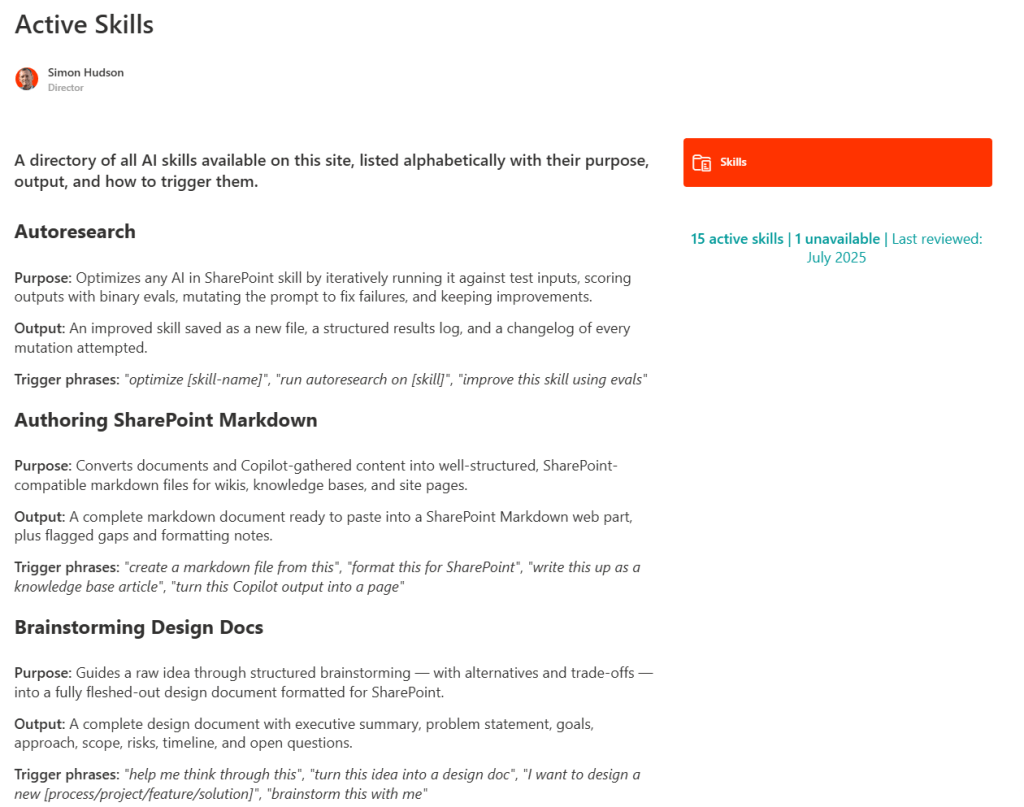
Automatically build a Skills information page
Having said you should document what you have added, it then occurred to me that I should do it myself, and by that I mean ‘get AI to do it‘.
I asked the SharePoint AI to do the following from Agent Assets library and from the site home page. The former created great text summaries but couldn’t make a page, while the latter struggled to extract all the skills information but did create a page. I copied and pasted from the former into the page in the end.
Review each of the skills in the Agent Assets library (https://novia392.sharepoint.com/AgentAssets/Forms/AllItems.aspx) and use the description: section to create a SharePoint page in this site headed Active Skills, which shows all the skills here, in alphabetical order, their purpose and short description of output, together with their trigger phrases. Publish a link to the page the home page.
However, I ultimately decided to create a SharePoint list. More on that in my next blog.
Over to you
Now you can play.
You might think that you should call the new skills you have from the AI floating button in SharePoint. You aren’t wrong, but the best place to do it is from the M365 Copilot app. It has full access to all your SharePoint-stored skill.md files and can do things AI in SharePoint can’t currently do, such as render images.
Just fire up the app, or open https://m365.cloud.microsoft/ and try out some of the triggers you captured from the skills.
Look out for my next article to how to build you own skills.

 Novia Works Ltd
One reply on “Skills files 101 – start here”
[…] be to create and maintain some SharePoint pages describing the skills stored in the site (in the Agent Assets library) and what the triggering phrases in a prompt are. Encourage them to request changes and propose new […]