

The last few days I’ve had some fun with SharePoint and Adobe.
A client approached me with a question. They are in the middle of migrating all of their content from an on-premises server accessed over remote desktop to SharePoint Online and the Microsoft 365 stack; a project I fully endorse.
They recognise that there should and will need to be some changes in their ways of working as part of their migration to the cloud, but hope to minimise the technoculture shock and retraining of all their staff as far as possible.
They were worried being able to quickly and easily open the thousands of PDF files which form part of their daily workflow, in order to sign, highlight or comment on them. The default behaviour from SharePoint is to open PDF files in the browser viewer, which doesn’t support these interactions. They are used to opening them in Acrobat Reader on the desktop. They could use OneDrive sync, but have concerns about sync errors and performance. Their challenge to me was to find a way to open them into Adobe Acrobat reader so they could continue with their familiar experience.
That should be easy
I regretted the suggestion that this could be straightforward as soon as I said it!
I remember having done some things in the past to launch applications from the browser, but that was a while ago. In hindsight I should have suspected that something would have changed.
So here are some of the ways I learned that will not work, despite what many of the online resources, and even the esteemed Copilot, suggest.

Library settings, Advanced settings, Open in the client application
Nope. It just doesn’t. That would have been too easy.
Create a custom field or calculated with an application URL launcher
A couple of my always helpful MVP colleagues suggested that they had done something like it this way. Luise even provided me with the base code:
acrobat://open/?file=https://yourdomain.sharepoint.com/sites/yoursite/Shared%20Documents/yourfile.pdf
I played with this extensively but to no avail. I assumed it was my lack of understanding of the right syntax.
Create a custom field and use field formatting to create a custom link using JSON
It’s been a while, but I thought I’d have a go at doing some list formatting using JSON code. I’m rusty but there were plenty of apparently useful suggestions online, resulting in me trying variants on the theme of:
{
"$schema": "https://developer.microsoft.com/json-schemas/sp/column-formatting.schema.json",
"elmType": "a",
"txtContent": "@currentField",
"attributes": {
"target": "=if(@currentField!='','_blank', '_self')",
"href": "=if(@currentField!='','https://testlz.sharepoint.com/sites/' + @currentField, '')"
}
}
(from https://sharepoint.stackexchange.com/questions/249966/json-control-if-currentfield-is-empty)
and
https://--tenant--.sharepoint.com/sites/--sitename--/_api/v2.0/drives(from https://github.com/pnp/List-Formatting/tree/master/column-samples/generic-open-file-as-pdf)
The range of errors was exciting at least.
Note: there are some FANTASTIC column formatting samples available here: https://pnp.github.io/List-Formatting/columnsamples/. Have a look.
Ask Adobe
The nice people at Adobe (you know, the ones who arbitrarily mess around with their user interface on a regular basis making it impossible to use), Suggested this I needed to use an Edge Add-on. I had concerns about the ability to deploy this across an entire organisation, but figured Group Policy or something would come to the rescue. At least my client uses Edge as its default browser; I expect there’s an equivalent for Chrome.

I needn’t have worried about group policy, because this didn’t work either. It was possible to get a PDF to open in the browser based version of Acrobat, but it wasn’t the single click experience that was desired.
Cracked it… kind of
So far, it had turned out to be a proper pain in the arse.
A good friend, and lovely developer, Dan, offered to help as he was sure that he had done something like this in the past too. He came up with what appeared to be much more elegant JSON code than anything I managed.
{
"$schema": "https://developer.microsoft.com/json-schemas/sp/column-formatting.schema.json",
"elmType": "a",
"txtContent": "Open in Acrobat",
"attributes": {
"target": "_blank",
"href": "='@currentWeb' + [$FileRef]"
}
}
I created a text column called OpenPDF in a test SharePoint library on my tenant and we attempted to copy the JSON into it. After some frustration (some error was crept in whenever I copied the text from WhatsApp; but worked when the same was copied from a text file), we succeeded in getting SharePoint to accept the JSON. Sadly we got an unexpected 404 error when we used the link. For reasons I don’t understand, @currentWeb' + [$FileRef] created an unexpected URL, with part of the path duplicated. Edge Developer tools let us find it; F12 is our friend.
<a target="_blank" href="https://mydomain.sharepoint.com/sites/NoviaHQ/sites/NoviaHQ/Shared Documents/invoice-INV-1011324.pdf" class="sp-field-customFormatter" rel="noopener noreferrer " data-interception="off" data-selection-disabled="true" data-selection-touch-invoke="false">Open in Acrobat</a>
Dan managed to fix this when he realised he could use an absolute reference.
{
"$schema": "https://developer.microsoft.com/json-schemas/sp/column-formatting.schema.json",
"elmType": "a",
"txtContent": "Open in Acrobat",
"attributes": {
"target": "_blank",
"href": "[$FileRef]"
}
}
We clicked our new link and, huzzah!, the document opened; via Adobe Cloud, in Acrobat Reader, within Edge.
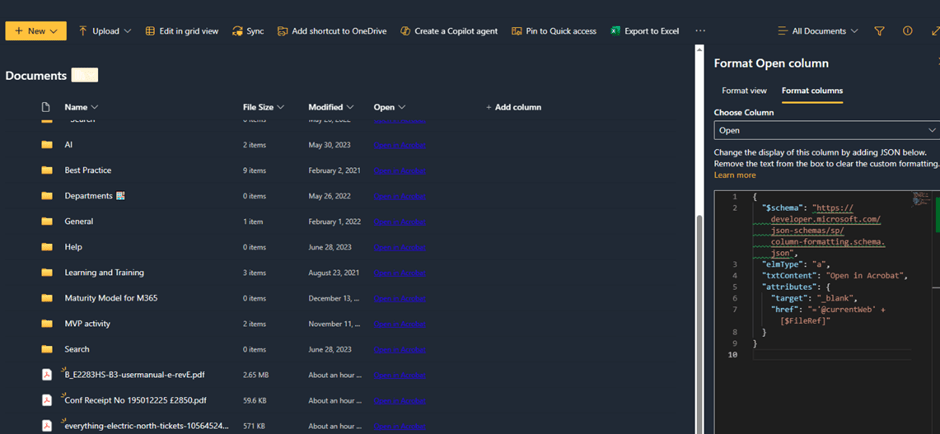
In testing this, we discovered something else interesting… The main file link in SharePoint was also working as I had originally hoped.
It turns out that something else I tried had worked perfectly, it just took a few hours to become active.
Cracked it… the right way, at last
Finally, this is the proper way to solve the PDF problem.
I had tried something else at teh same time as all the approaches that had failed.
It’s not obvious. Very few online articles mention it. It takes a while to register itself across your tenant. It is the best, scalable, maintainable solution. It’s very simple to do.
It goes like this
- From the M365 Admin Center go to Integrated Apps then search for and add the Adobe Acrobat for M365 app; you will need Global Admin rights to complete the deployment. Note that you shouldn’t need the Adobe Acrobat for Microsoft Word etc or any other of their array of apps to make this work.
- Ensure it’s available to everyone in the organisation who needs it.
- Wait several hours for it to be deployed fully.
- Use.


Just 4 steps and you can go to a SharePoint library and click on a PDF file. It should open straight into Acrobat using Adobe Cloud. It’s Acrobat Reader running in the browser, but it’s got almost all the standard Acrobat Reader functionality. Handily, if there is any functionality missing there’s a nice Desktop button you can press.

As easy as that, once you know.
What else we learned
- There are lots of Integrated apps to investigate.
- This approach is nominally a single document interface; but as they open in their own tab you can open multiple documents, each in their own tab.
- The coded app launch links I tried used to work; updated security protocols in modern browsers now prevent that.
- The JSON solution probably won’t work with Chrome as it much prefers to use it’s own, built in viewer. I assume that Integrated App in M365 does work.I don’t use Chrome so haven’t tested it.

 Novia Works Ltd