

I went fully cloud native for my content well over a decade ago. In the companies I founded it was a matter of enforced policy that company files could only be stored in SharePoint, or OneDrive. Absolutely nothing was to be stored on the local drive except via SharePoint or OneDrive Sync. When it came to paper the rule was it could be used but not stored; paper had to be binned or shredded at the end of the day. In over 10 years we filled just one filling cabinet drawer, all for compliance reasons. My personal life was pretty much the same; I actually use two OneDrive accounts from my Family Plan (the second is in the name of my boat) and share content from the second to my primary to give me 2 TB of storage (64% full).
Nevertheless, there are many functions that just need the desktop experience. Some applications don’t play well with the cloud. Bulk functions like rename, lots of image processing (including the wonderful PowerToys Resize), plus some weird stuff I use to synchronise files to my Foundry VTT on Azure need a local instance. I use Sync a LOT. But it’s time to switch to Shortcuts in OneDrive. According to Microsoft. Or not…
The emergence of Shortcuts
A while back the Add to OneDrive button appeared in SharePoint. I tried it. It sucked. I spent several days trying to resolve the mess it made of my carefully architected file structure.

However, Add to OneDrive is back, and it means to stay. It’s called Add shortcut to OneDrive and it is Microsoft’s preferred approach, as clearly stated in their annual OneDrive event “Copilot + OneDrive”.
Add to OneDrive is back, and it means to stay.
Why? According to Microsoft:
- Cross‑device consistency: Shortcuts follow you everywhere.
- Copilot integration: Because shortcuts unify content into OneDrive, Copilot can surface and reason over those files more easily.
- Reduced reliance on Sync: Sync is being stabilised, not expanded. It’s still there for offline‑heavy or admin‑controlled scenarios, but shortcuts are the default story going forward.
- User empowerment: Shortcuts let users bring in what they need without IT intervention.
Let’s have a deeper look.
Shortcut vs Sync comparisons
Both Sync and Shortcuts have things in common, and few differences. I’ve summarised them as follows.
Offline Access and Files On‑Demand
Both Sync and Shortcuts use Files On‑Demand:
- Files are streamed when you open them.
- You can right‑click → Always keep on this device to pin them offline.
- Once cached, they’re available without connectivity.
So, in terms of storage impact, there’s no difference. Both are lean by default, heavy only if you pin content.
Cross-device behaviour
This is a killer feature for end users; shortcuts follow you across all devices signed into your OneDrive. No need to reconfigure sync on each PC, laptop, tablet or smartphone.
- Shortcut: Appears in OneDrive across all devices automatically.
- Sync: Must be manually configured on each device.
Deployment & management
Shortcuts are a lightweight, user-driven tool. If that’s what you need, then fill your boots. But you get no admin control over deployment, as below.
By contrast, Sync can be deployed via Intune or Group Policy for enterprise control. Or disabled altogether of course.
Admin Control
From an IT governance perspective, Sync is still the heavyweight:
Admin control remains significantly stronger with Sync than with Shortcuts. Sync can be centrally managed, deployed, and monitored via Intune, Group Policy, and SharePoint admin settings. Shortcuts are user-driven and lack enterprise-level enforcement or visibility at this time.
- Deployable via Intune or Group Policy.
- Monitorable in the Microsoft 365 admin centre.
- Configurable with bandwidth limits, exclusions, and selective sync.
Shortcuts, by contrast, are user‑driven. No central deployment, no monitoring, no audit trail of who added what. They’re brilliant for self‑service, but invisible to admins. Sync Wins.

My Organisation vs My Organisation’s OneDrive
The other big question is… ‘Is it better in OneDrive rather than the SharePoint node’.
Microsoft seem to think so. They believe that’s the place most people do their file stuff.
It’s not what I think.
I do use OneDrive for Business (OD4B), but far, far less then my personal OneDrive. In my businesses all our corporate files are in SharePoint/Teams. There are exceptions where we do suggest using OD4B, and these are described in our policies; we define a standard OD4B folder architecture to support that.
Limited OD4B use isn’t just me and mine thing. Very many organisations disable OD4B altogether, or mandate very restricted use.
Files and shortcuts are all munged together in a sticky mess
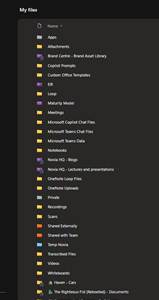
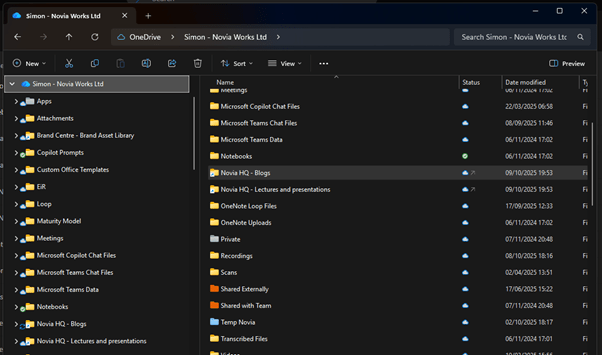
So, is OD4B a reasonable place to push these SharePoint links? I don’t think so. Instead of having clear separation of ‘personal’ business content and shared business content these are all munged together in a sticky mess. There are so many platform-created folders in OD4B (all the yellow folders in the screenshot below) for things like recordings, attachments, Copilot things, Teams things etc. that it is almost impossible to navigate. In my OD4B about 80% of the folders are things I didn’t create. It’s VERY cluttered. My shortcuts are lost in the noise. The only trick I have been able to use is to colour code them.
Retaining the Organisation node that SharePoint creates on the desktop provides clear separation and keeps shared and personal content in that context. Meanwhile, my libraries (and from there the folders they contain) are readily available in the OneDrive web client.
Metadata and File Explorer: The Big Limitation
Here’s the rub. Whether you use Sync or Shortcuts, the File Explorer experience still lacks the sophistication of the cloud repositories.
- Metadata is not visible in File Explorer
Even though the files retain their metadata in SharePoint, OneDrive shortcuts only expose basic file properties (e.g. name, size, modified date). Custom columns like “Proposal Status,” “Client Name,” or “Review Stage” are not shown.
- No metadata-based views or filters
You lose the ability to use SharePoint’s powerful metadata-driven views, filters, and grouping when accessing files via shortcuts in File Explorer. This forces use of folders for grouping even when there are superior tools in a SharePoint library. - No metadata editing
You cannot edit or apply metadata from within OneDrive or File Explorer. Any updates must be made directly in SharePoint. - Document Sets and Content Types
If your libraries use Document Sets or custom Content Types with metadata, those structures are flattened in OneDrive. .
If your libraries are metadata‑rich (think proposals with status, client, reviewer), you’ll need to dip back into the browser for that context.
Plus there is all that pesky governance stuff; staff leaving laptops in taxis or quitting with your files on their machines. That sort of thing.
Switching to Shortcuts
Let’s take a quick look at the mechanics of Shortcuts.
When you hit Add shortcut to OneDrive on a SharePoint library or folder, it doesn’t create a new top‑level entry in File Explorer. Instead, the shortcut shows up inside your OneDrive – [Organisation] folder. It looks like a normal folder with a little arrow, but it’s really a symbolic link back to SharePoint.

It’s smart enough to recognise if you already have a sync in place and give you the option to Replace the Sync. So that seems OK.
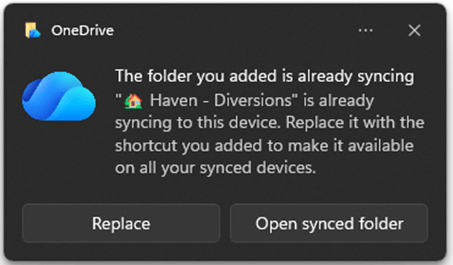
Note that once you have added one of more shortcuts you can no longer use the Sync function for that library. It is very much one or the other.

Houston, we have a problem.
The real trouble begins when you decide to create a shortcut for a folder within a library where other folders, or the entire library, is already Sync’d.
If you try you will get an initial confirmation toast, followed by an error dialog. The shortcut is added to the OneDrive for Business folder list, but your local stuff is rapidly and unobviously becoming a hot mess.
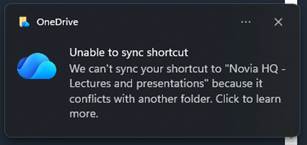
The error is because these folders are already in the OD Sync client and it’s that which reports the error. If you look in the Sync client (from the tool tray icon) you will note the prominent Unsync button. It makes you think that Microsoft have put the work in and that resolving the issue is reasonably straightforward (provided you didn’t ignore the warning).

With that done the local files and folders seem to sort themselves out pretty quickly. Here is the before and after view:

Looks good.
Until you look more closely…
You might have expected the other folders you had sync’d from the library to still be connected to SharePoint. They aren’t. I told you that it’s one or the other. This is the consequence.
Once you have added one or more shortcuts you can no longer use the Sync function for that library unless you remove the shortcuts first.
It’s very much one or the other.
It’s not just your folder with the new Shortcut that isn’t using the Sync function; it has stopped syncing the entire library that folder was part of. No warning, no remediation. It just kyboshed the entire thing. What’s worse, it has not removed the now unlinked local content nor the folder that you created a shortcut for. The library has been completely removed from the OD Sync Settings Account list, and left you with a disaster in the making, especially if you don’t realise for a while.
This, frankly, is deeply rubbish and a source of serious pain for companies and their support team.
It has stopped syncing the entire library

When to Use Each
- Shortcuts: Best for lightweight, cross‑device access. Perfect for students, project teams, or community collaborators who just need a folder to “show up” in Explorer.
- Sync: Best for controlled deployments, bulk offline access, or when IT needs visibility and policy enforcement. Best for well structured environments with a decent information architecture.
- Hybrid: don’t! Just don’t!!
My Takeaway
Frankly, I’m disappointed. I see the benefits of Shortcuts and MS have clearly done some work to improve them.
If you have a clean environment and haven’t been using Sync, then you are probably fine. Although, if you weren’t using Sync, you probably don’t plan to use Shortcuts either.
The dangers of adopting them in an environment already using Sync are HUGE though. You will either lose content, duplicate content or end up with unmanaged differences between now-local and their parent cloud files. It’s a governance, compliance and support nightmare in the making.
The idea that this is the direction Microsoft plan to take actually terrifies me. Unless they have further improvements in the pipeline to overcome the issues, I see a storm coming.
Of course, there is a strong argument for not using either. If you don’t need those few local file use cases I mentioned at the start it’s best to avoid local synchronisation of any kind and keep all your stuff in the cloud where it belongs.
That’s it; I need to repair my local file architecture now.
Sources:
OneDrive Blog: https://techcommunity.microsoft.com/blog/onedriveblog/copilot–onedrive-intelligence-in-every-click-inspiration-in-every-memory/4458882

 Novia Works Ltd
One reply on “Shortcuts vs Sync in SharePoint: What Really Happens”
[…] Link:https://noviaworks.co.uk/2025/10/09/shortcuts-vs-sync-in-sharepoint-what-really-happens/ […]