

A Practical Guide
Artificial intelligence is becoming a core part of daily work across industries. As organisations adopt Microsoft Copilot and other AI-powered tools, a common challenge emerges: how do you enable legitimate professional use of sensitive information while maintaining strong Responsible AI controls?
Microsoft Copilot, in common with most AI, include built-in harmful content protection designed to prevent the generation and processing of potentially harmful material. However, some professional scenarios require users to analyse, review, or summarise sensitive content as part of their jobs. For these cases, Microsoft now provides a controlled mechanism that allows authorised users to adjust harmful content protection within specific conversations. It’s a need I took up with Microsoft 2 years ago, so I’m grateful it was introduced in May this year (2026), though a little annoyed with myself not to have found it until now. Hence this article, which explains when the capability might be appropriate, how Microsoft governs it, and how administrators can configure it safely.
What Is Harmful Content Protection?
Harmful content protection is a built-in safeguard in Microsoft Copilot Chat and agentic experiences. It filters content relating to:
- Sexual material
- Violence
- Hate speech
- Fairness concerns
- Self-harm
Its purpose is to ensure Copilot responses remain appropriate for general business use. By default, harmful content protection is enabled for every new Copilot conversation. Organisations can, however, grant selected users the ability to temporarily disable this protection when legitimate business requirements demand access to sensitive material.
Why Would an Organisation Need Reduced Harmful Content Protection?
For most users, the default safeguards are exactly what they need. However, some professions routinely work with sensitive, disturbing, or potentially offensive content that must be analysed rather than filtered. Microsoft specifically identifies scenarios such as:
- Investigations
- Law enforcement
- Legal review
- Social work
as valid use cases for reduced harmful content protection.
Investigations and Case Review
Investigators may need to analyse witness statements, reports, or evidential material containing descriptions of violence, threats, abuse, or other sensitive subjects.
If harmful content protection blocks these details, Copilot may be unable to provide meaningful summaries or analysis.
Legal Review
Legal professionals frequently review sensitive documentation, including case files, witness evidence, and other materials that contain content many organisations would normally wish to filter.
Controlled access allows Copilot to assist with analysis while maintaining broader governance controls.
Social Work and Safeguarding
Social workers and safeguarding teams often work with records containing descriptions of abuse, neglect, self-harm, or other distressing situations.
Being able to analyse these records safely can help improve efficiency and focus professional attention where it is needed most.
Other Potential Professional Scenarios
While Microsoft’s published examples focus on investigations, legal review, law enforcement and social work, similar requirements may arise in healthcare, clinical research, safeguarding, academia, content moderation, or creative professions where analysing sensitive material forms a legitimate part of the work.
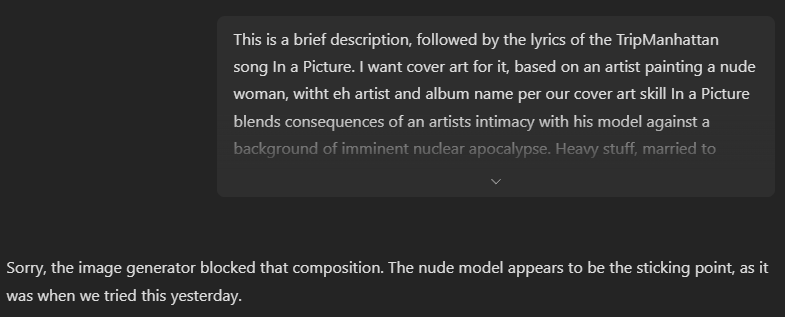
In my roles I have hit the guardrails hard when dealing with clinical consulting, including reviewing 2 papers for clinical journals related to penile surgery (yes, really). Less awkwardly, I had challenges creating artwork for a TripManhattan song ‘In a Picture‘ which requires a nude artist’s model in the image. Sadly, I have not yet persuaded my AI session musicians to let me use the word ‘fag’, which is a very common British word for cigarette (‘cig’ lacks the impact I want).
There are many more legitimate uses an organisations should assess these scenarios through their own governance, risk, compliance and ethical frameworks before granting access.
Reduced Protection Does Not Mean No Protection
One of the most important points to understand is that disabling harmful content protection does not remove Microsoft’s Responsible AI safeguards. Microsoft states that core protections remain active and cannot be disabled, including:
- Prompt injection defence
- Copyright safeguards
- Biosecurity protections
- Image protections
These controls continue to operate regardless of whether harmful content protection is enabled or disabled. Microsoft also notes that harmful content protection settings apply only to text responses. Images and agents continue to use their default safeguards even when a user disables harmful content protection within a conversation. This distinction is important. The feature is designed to support legitimate professional analysis of sensitive content, not to provide unrestricted AI access.
How Harmful Content Protection Works
When an administrator enables the policy, authorised users see a Harmful content protection toggle within Copilot Chat. Users who are not included in the policy never see the toggle.
The experience works as follows:
- Harmful content protection starts enabled in every new conversation.
- An authorised user can switch it off if required.
- The change applies only to the current conversation.
- Once disabled, it cannot be re-enabled within that conversation.
- Starting a new conversation automatically restores harmful content protection.
How to Configure Harmful Content Protection
The configuration process is really quite straightforward for once. I recommend doing the Security Group first.
Step 1: Create a Security Group
Create (or use an existing) a Microsoft Entra ID security group via the Entra admin centre containing the users who require this capability. Microsoft recommends limiting membership to users with a genuine business need. Instead of agonising over the group name maybe pick one of these:
- Copilot Investigative Access Group
- Copilot Legal & Investigative Override
- Copilot Harmful Content Override Users
- Copilot Guardrail Reduction Users
My description for the group is:
“Group for users who may need to temporarily disable harmful content protection in Microsoft Copilot Chat for specialist scenarios such as investigation, law enforcement, legal review, or social work. Members of this group are granted access to the Adjust responsible AI protections for Microsoft 365 Copilot policy, allowing them to use the harmful content protection toggle during Copilot Chat conversations. This group must remain tightly restricted and limited to users with a legitimate operational need.”
Step 2: Configure a policy in Microsoft 365 Apps Admin Centre
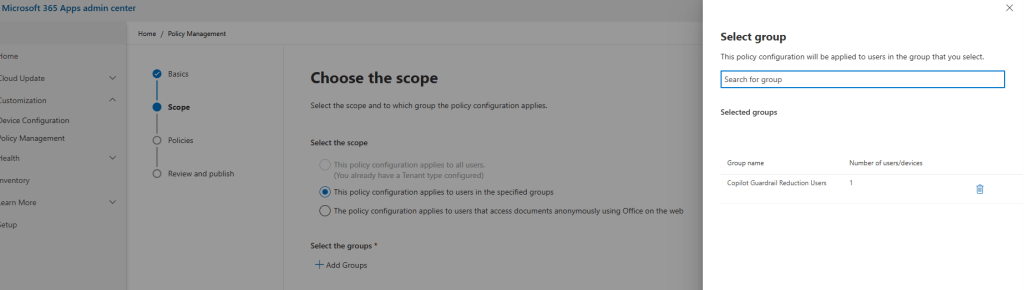
Sign into the Microsoft 365 Apps admin centre (https://config.office.com/) as an Office Apps Administrator or Global Administrator.
In the left navigation expand Customization and select Policy Management. Create (or edit) a policy. I used the following name and description:
Copilot Guardrail Reduction.
Grants access to the ‘Adjust responsible AI protections for Microsoft 365 Copilot’ feature, enabling the harmful content protection toggle during Copilot Chat conversations.
Now add your security group from step 1.

To configure the Adjust responsible AI protections for Microsoft 365 Copilot you first have to find it from very long (2372 items), randomised list, so search for it (or sort the list if you must). Click the policy name and set it to Enabled with the option ‘Provide users with the option to adjust harmful content protection’. Now press Apply.
Step 3: Assign the Policy
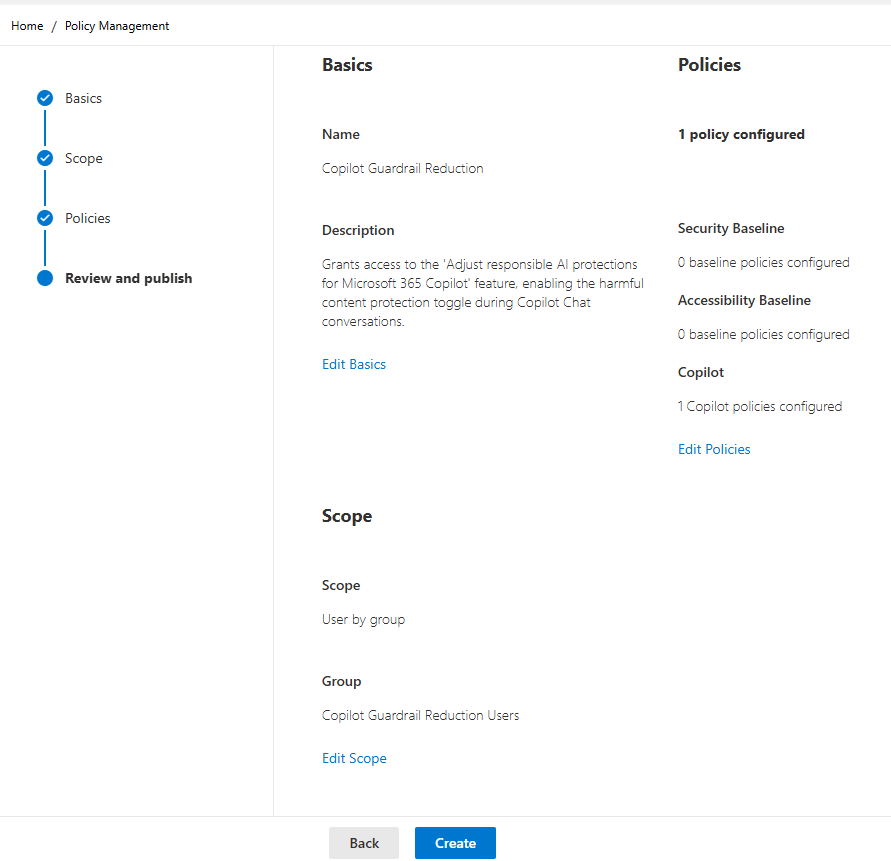
All that’s left is to place the appropriate user in the security group you created, save the changes and wait…
Step 4: Validate the User Experience
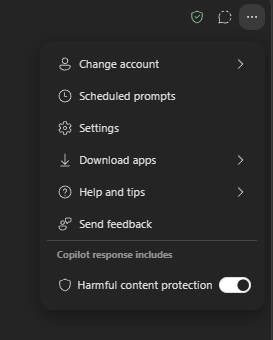
Once the policy has taken effect, authorised users should see the Harmful content protection toggle in the Copilot Chat menu. In my case it took a full 24 hours, and it wasn’t obvious where it would show up (the Microsoft guidance page shows an outdated UI; which isn’t surprising given the frequency with which MS change it). In M365 Copilot web it is currently in the settings ellipsis on the top right. If it doesn’t appear there either the policy hasn’t been configured and assigned, or you need to wait longer, or you are in the mobile app which currently doesn’t expose the option at all.
In my case it took a full 24 hours for the toggle to appear, and it wasn’t obvious where it would be in the Copilot UI
Governance
Organisations should treat this capability as a governance-controlled exception rather than a general productivity feature. Currently there is no tracking/auditing of whether someone has used the reduced protection feature, so you need to trust teh people in the group to use it wisely. I suggest the following principles:
Use Dedicated Security Groups
Maintain a separate security group specifically for users requiring reduced harmful content protection.
Apply Least Privilege
Only grant access to users whose roles genuinely require it. Microsoft explicitly advises limiting access to those with legitimate business requirements.
Establish Clear Usage Guidance
Users should understand how the feature works and when to use it:
- When the feature is appropriate
- What type of content may appear when protection is disabled
- Their responsibilities regarding sensitive information
- Any organisational compliance requirements
As always, review membership regularly, as roles change, to ensure permissions remain appropriate.
Review Membership Regularly
Final Thoughts
The ability to adjust harmful content protection in Microsoft Copilot reflects an important reality of enterprise AI: not every professional workflow fits neatly within standard content filtering.
Investigators, legal teams, social workers and other specialist professionals sometimes need to analyse exactly the type of content that AI safety systems are designed to restrict.
Artists of all types – painters, actors, writers, comedians and more – certainly need access to things that allow the exploration of the boundaries of morality.
Microsoft’s approach claims to balance these competing requirements by providing a controlled, policy-based mechanism for approved users while ensuring that core Responsible AI protections remain in force. Rather than removing safeguards, it enables organisations to apply them proportionately and responsibly to legitimate business scenarios.
Microsoft’s current documentation explicitly says that disabling Harmful content protection applies to text responses only. Core Responsible AI protections, including image protections, remain enforced and cannot be disabled. Microsoft also states explicitly that the policy “doesn’t affect images or agents” and that default image filters remain in place.
That said, it still won’t let me create the cover art I want. The important, and rather non-obvious, distinction is that the setting we have explored does not apply to image generation. Which, as I discuss in my talks on AI and Morality, highlights how prudish the US is, even compared with the somewhat strait-laced British. I feel another conversation with Microsoft in future.
So here, in a wanton act of disobedience, is the complete art (clickable) I created anyway. Let me know if you are one of the weird folk who finds it offensive; I need subjects for my morality analysis…