
A chance repost by the ever insightful Ami Diamond reminded me that Microsoft has, in its wisdom, ‘centralised’ it’s branding tools in SharePoint Brand Centre and Brand Kit.
At first glance this feels like Microsoft creating two products to solve the same problem. In reality they target different audiences and, while there is overlap, they solve different parts of the branding challenge. That’s what this article explores.
Brand Centre
I’m a big fan of Brand Centre. It’s one of the first things I created when building out a SharePoint tenant as it then supports all the subsequent sites.
I wrote a detailed article on it when it launched. I guess the good news is that it’s still up to date, since there have been almost no changes since then.
Francisco Peixoto published this article recently which highlights some of the strengths and limitations: Why “Brand Center” in Microsoft 365 Isn’t Really Central (Yet)
Brand Kit
Microsoft 365 Brand Kit lets your organisation define official, enforceable brand rules that Copilot and PowerPoint apply automatically. Like Brand Centre, it centralises logos, colours, fonts, templates, voice, and visual rules so every employee produces on‑brand content by default. Official Brand Kits require Microsoft 365 Copilot licensing and Brand Manager privileges to create and publish. Users without those permissions can still consume approved templates and assets once they have been published.
Microsoft positions both products as authoritative sources of branding information, although each focuses on different aspects of the brand ecosystem.
Brand Kit contains (approved?) visual and verbal elements that Copilot uses to generate consistent, compliant content across PowerPoint, Word, and the Microsoft 365 Copilot app.
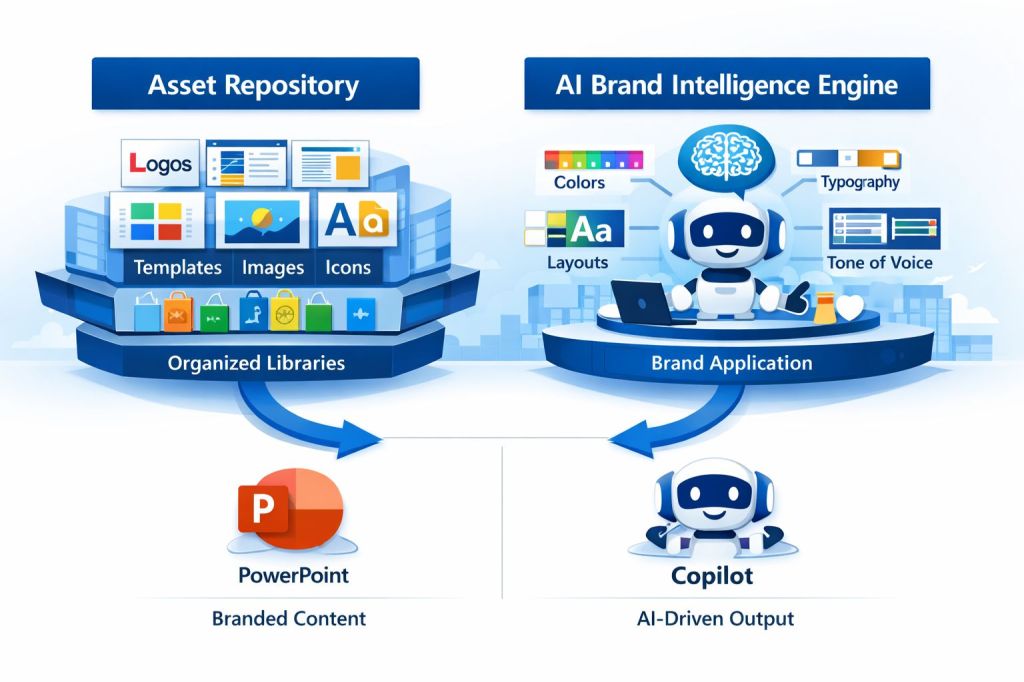
Each item below is a distinct component Copilot can read, enforce, and apply:
– Logos: primary, secondary, monochrome, event‑specific
– Colour palettes: HEX/RGB values, usage rules
– Typography: approved fonts, hierarchy, spacing
– Templates: layouts, slide masters, section dividers
– Icons & illustration styles: approved iconography libraries
– Data visualisation styles: chart colours, line weights, gridline rules
– Photography rules: image treatments, composition, filters
– Brand voice & tone: writing style, terminology, do/don’t lists
– Usage rules: spacing, alignment, logo placement, forbidden styles
Brand Kits can be created manually, generated from existing templates and assets, or built by uploading a formal PDF brand guideline. Copilot analyses these sources and extracts colours, typography, imagery rules, tone of voice, logo guidance, and other branding elements that can then be reviewed and refined by a Brand Manager before publication.
What it does
Once created, Copilot uses the Brand Kit in the following ways:
– Apply brand defaults when generating slides or documents
– Fix off‑brand content using the Brand Reviewer (incorrect fonts, colours, logos, spacing, imagery)
Organisations typically use the Brand Centre and Organisational Asset Libraries as the authoritative repository for logos, images, templates, and other reusable assets. Brand Kits can then reference and consume those approved assets so that Copilot and PowerPoint can apply them consistently.- Enforce brand voice in written content
PowerPoint has the deepest integration; Word and the Copilot app also support brand‑aware generation.
A useful way to think about it is that Brand Centre manages assets, while Brand Kit manages behaviour.
Creating your Brand Kit
You need to assign Brand Managers to a security group then update one of your policies.
1. Create a mail‑enabled security group
The easiest way is to use the Exchange admin centre: https://admin.exchange.microsoft.com
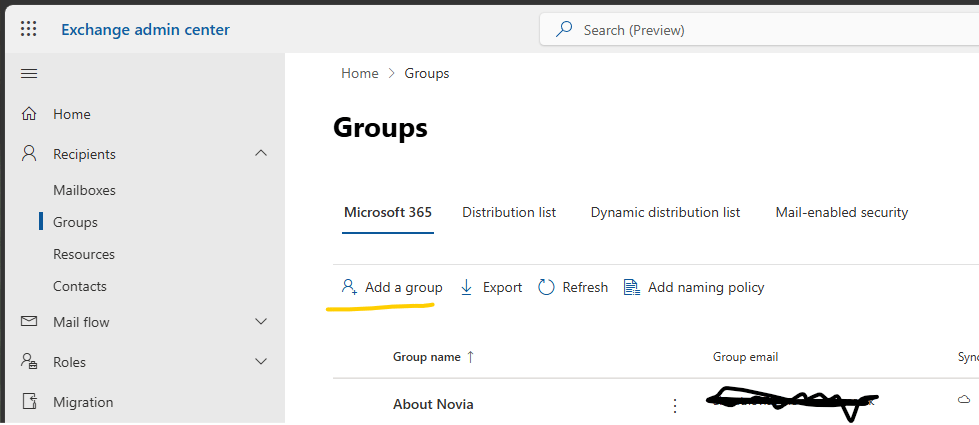
Navigate to: Recipients → Groups. Click: + Add a group and choose: Mail‑enabled security. Complete Name, Description, Email address (alias), Owners and add Members.
Now configure optional settings & join restrictions. Click Create and you are done, but make a note of the email address as you will later paste this group’s email address into the policy.
2. Set up the policy
You enable the Brand Manager policy in the Microsoft 365 Apps Admin Center (https://config.office.com/), sign in with an Administrator account.. This policy grants selected users the elevated role required to create, edit, and publish official Brand Kits. Brand Manager must be applied at the tenant level.
Open Customization → Policy Management, then select your tenant‑level policy. You have two options: Use your existing tenant policy with scope Apply to all users, or create a new tenant policy with the same scope.
Find the Brand Manager policy (gGo to the Policies tab and use the search box to search for “Brand Manager”. Select Elevated role for Brand Managers. Now set it to Enabled (default is Not configured). In Security group email address, enter the email of the mail‑enabled security group you created earlier, and Apply.
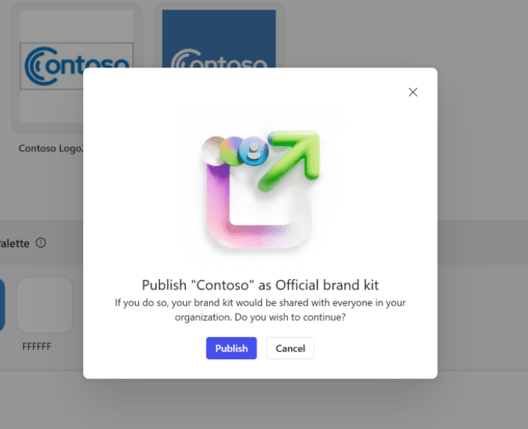
Once enabled, members of that group will see the Publish button inside Brand Kits.
Wait. It can take up to 24 hours.
What they can now do
Once enabled, your designated brand managers can:
– Create official organisation‑wide Brand Kits
– Publish Brand Kits to the Create tab on microsoft365.com
– Manage logos, colours, fonts, templates, and brand rules
– Use the Brand Reviewer in PowerPoint to enforce brand compliance.
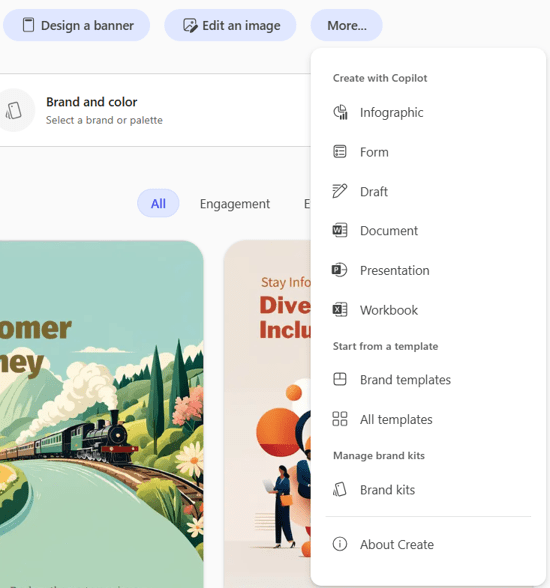
Manage it
Manage an official Brand kit
- Select the more options ellipsis (…) on the official Brand kit tile to view options to Edit, Rename, or Delete the kit.
All changes are automatically saved and available to users in your organization.
Manage multiple official Brand kits
If your organization manages several brands, such as sub‑brands, different product lines, or acquired entities, you can create and maintain multiple Brand kits per organization. This allows you to ensure each brand is independently consistent
🚀 Why organisations use Brand Kits
– Eliminates inconsistent decks and documents
– Reduces time spent fixing formatting
– Ensures brand compliance at scale
– Gives marketing teams control without slowing down employees
Maintain separate sets of templates and assets
Assign different colors, fonts, and imagery per brand
Switch Brand kits depending on the presentation
Set brand‑specific defaults.
PowerPoint, Copilot and the Future of Brand Governance
PowerPoint is currently where Microsoft’s branding investment is most visible. While Brand Centre provides the storage and management layer for assets, and Brand Kit provides the branding rules, PowerPoint is where these components come together in day-to-day use.
Microsoft has spent the last eighteen months steadily increasing the level of integration between PowerPoint, Copilot, Brand Centre and Brand Kit. The result is a shift away from simply providing users with approved templates and assets towards actively guiding and enforcing brand compliance throughout the presentation creation process.

Current PowerPoint Capabilities
Today, Copilot in PowerPoint can make use of both your organisation’s PowerPoint templates and published Brand Kits when generating presentations. Microsoft recommends that organisations provide rich, well-structured templates containing representative slide examples, layouts, visual elements and design patterns, as Copilot learns from these assets when generating content.
Copilot learns more from your PowerPoint templates than most people realise. Poorly structured templates with few example slides produce inconsistent results. Organisations should treat template design as a critical part of their Copilot adoption strategy, not simply a branding exercise.
When a user creates a presentation using Copilot, PowerPoint can analyse:
- PowerPoint templates and slide layouts
- Sample slides and design patterns
- Brand Kit assets and branding rules
- Approved logos, colours, imagery and icons
- Brand voice and content guidance
- The user’s prompt and source content
Rather than simply applying a theme, Copilot attempts to recreate the visual and structural patterns defined by the organisation’s templates and branding assets, producing presentations that more closely align with corporate standards from the outset.
Brand Reviewer
Brand Reviewer is currently the most advanced Brand Kit capability available within PowerPoint.
It analyses presentations against the organisation’s published Brand Kit and can identify:
- Incorrect colours
- Unapproved fonts
- Misused or missing logos
- Off-brand imagery
- Layout and spacing inconsistencies
- Violations of brand guidance and usage rules
Where possible, Brand Reviewer can suggest one-click fixes that automatically bring presentations back into compliance. This moves branding from a manual review activity to an assisted governance process supported by AI.

Brand-Aware Presentation Generation
One of the most significant recent developments is the ability for Copilot in PowerPoint to generate presentations directly using an official Brand Kit.
As Brand Kits become available within the tenant, users can generate presentations using approved logos, colours, fonts, voice and design standards without manually applying corporate templates after generation.
This significantly reduces the amount of rework typically required when creating presentations using AI-generated content.
What’s Coming Next?
Microsoft’s published roadmap suggests that PowerPoint is becoming the primary experience for enterprise brand management within Microsoft 365.
Recent announcements indicate several important developments:
- Native access to brand assets directly from within PowerPoint.
- A dedicated Brand pane containing colours, logos, icons, images and other approved assets.
- Direct access to published organisational Brand Kits.
- The ability for users to work with both official and personal Brand Kits.
- Deeper integration between Copilot-generated presentations and brand governance controls.
This means users will increasingly be able to create, edit and review presentations without needing to leave PowerPoint to find approved branding assets.
The Strategic Direction
Looking at the overall direction of travel, Microsoft’s vision appears clear.
Historically, organisations relied on training, guidance documents and periodic reviews to maintain brand consistency. The newer approach uses AI to apply branding automatically and continuously throughout the content creation process.
In practical terms, that means:
- Brand Centre stores approved assets.
- Brand Kit defines how those assets should be used.
- Copilot creates content using those rules.
- Brand Reviewer validates compliance afterwards.
- PowerPoint becomes the primary surface where all of this happens.
For organisations investing in Microsoft 365 Copilot, PowerPoint is rapidly becoming the showcase for Microsoft’s evolving vision of AI-driven brand governance, where creating on-brand content becomes the default behaviour rather than an afterthought.
Brand Checker
Brand Checker (aka Brand Reviewer ) runs ion PowerPoint and is used to verify that a presentation follows your Brand Kit. It can flag:
- Incorrect colours or fonts
- Misplaced or unapproved logos
- Off-brand imagery
- Layout and alignment issues
To use it simply open a PowerPoint presentation; Brand Checker runs automatically (or on-demand) and highlights issues across your slides. You can fix most with a one-click fix; Copilot replaces, adjusts, or realigns the off-brand element. You then review and accept the fixes and you are good to go.
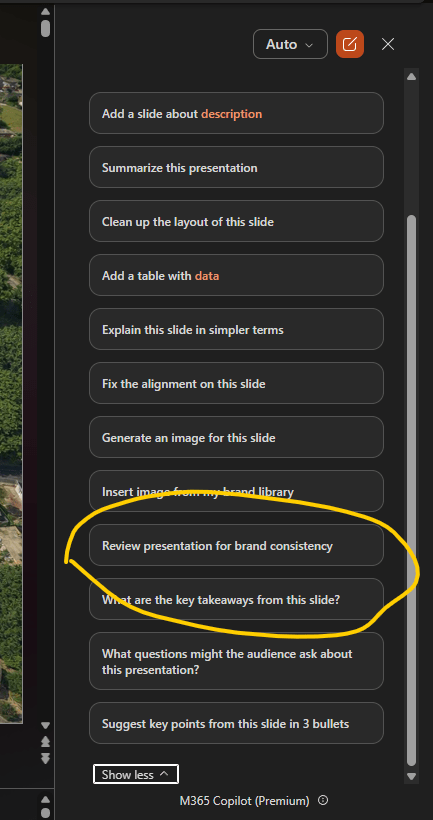
Brand Centre + Brand Kit
The integration between the Microsoft 365 Brand Kit and the SharePoint Brand Centre (with Organisational Asset Libraries) is actually simple enough: Brand Kits pull approved brand assets directly from your Brand Centre so Copilot and PowerPoint can use them automatically.
Brand Kits let you use approved brand assets directly from where they live in your organisation’s asset library .
The core idea
Brand Centre is the storage layer.
The Brand Kit is the rules and intelligence layer. Together, they give Copilot and PowerPoint a single, authoritative place to fetch logos, templates, images, and other brand assets and apply them automatically.
- Logos: Brand Kits reference your official logo files stored in the Brand Centre.
- Templates: PowerPoint templates stored in the Brand Centre become selectable inside the Brand Kit.
- Images: Photography libraries and approved imagery are pulled directly from the Brand Centre.
- Icons: Icon sets stored in the Brand Centre become available to Copilot and the Brand Reviewer.
- Brand Reviewer: When fixing slides, it uses assets from the Brand Centre to replace off‑brand elements.
This means you don’t upload assets twice; you maintain them once in SharePoint, and the Brand Kit consumes them.
PowerPoint uses the Brand Centre via the Brand Kit:
- When Copilot generates a deck, it pulls logos, colours, and templates from the Brand Kit, which in turn references the Brand Centre.
- When the Brand Reviewer scans a deck, it uses Brand Centre assets to fix incorrect logos, off‑brand colours, wrong fonts, unapproved imagery, spacing and layout issues
This is why Microsoft recommends setting up a Brand Centre/OAL as part of the Brand Kit rollout .
Microsoft separates Brand Kit and Brand Centre because they serve different purposes.
Brand Centre (SharePoint OAL) stores files, is version‑controlled, managed by IT or MarComms and is used across Microsoft 365 (PowerPoint, Word, Designer)
Brand Kit (Copilot) stores rules, voice, typography, spacing, do/don’ts, extracts brand intelligence from templates, enforces brand consistency and is used by Copilot and Brand Reviewer. The Brand Kit points to the Brand Centre for assets.
Configure this
For the integration to work:
- Set up a SharePoint Organisational Asset Library
- Enable the Brand Manager policy
- Create the Brand Kit and link it to your Brand Centre assets
Once done, Copilot and PowerPoint automatically use your brand assets.
The Maturity Model View
One thing Microsoft never explicitly states is that Brand Centre and Brand Kit exist at different levels of organisational maturity. Although both are concerned with branding, they solve very different problems.
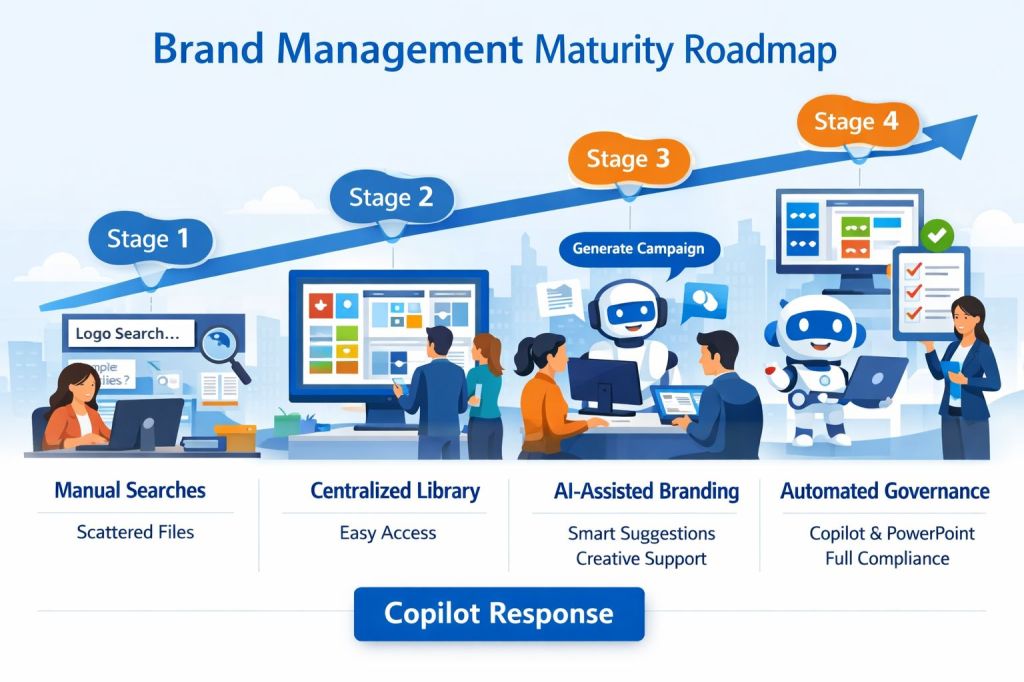
Brand Centre Solves Distribution
Without a Brand Centre, employees spend an extraordinary amount of time searching for the correct assets:
- The latest company logo
- The approved PowerPoint template
- Official brand imagery
- Corporate fonts
- Marketing-approved graphics and icons
At this stage, the challenge is primarily one of discovery, governance and asset management. The goal is to ensure that everyone can easily find and use approved brand materials from a single location.
Brand Kit Solves Consistency
Once assets are available, a different problem emerges. Employees may be using approved assets, but they still apply the wrong colours, misuse logos, ignore typography guidelines , create inconsistent slide layouts and write in an inconsistent tone of voice.
Brand Kit addresses these challenges by allowing Copilot and PowerPoint to actively apply branding rules rather than simply storing branding assets. It transforms branding from a passive reference library into an actively enforced set of standards.
Together They Create a Closed Loop
When deployed together, the two technologies complement one another:
- Brand Centre stores approved assets and templates.
- Brand Kit defines how those assets should be used.
- Copilot generates content using those branding rules.
- Brand Reviewer validates and corrects compliance issues.
This creates a genuine end-to-end brand governance process within Microsoft 365. Employees no longer need to search for assets, remember branding rules, or manually check compliance. Instead, Microsoft 365 can increasingly guide users towards creating content that is both consistent and compliant by default.
Viewed through a maturity model lens, Brand Centre is the foundation that makes brand assets discoverable and manageable, while Brand Kit represents the next stage, where branding becomes intelligent, automated, and increasingly AI-driven.
Final Thoughts
The confusion surrounding Brand Centre and Brand Kit is understandable. Both deal with branding. Both manage logos and templates. Both aim to improve consistency across Microsoft 365.
In reality, they solve different problems and serve different stages of an organisation’s branding maturity journey.
Brand Centre is the asset management layer. Built on SharePoint and Organisation Asset Libraries, it provides a central repository for logos, templates, images, fonts and other approved brand resources. It ensures users know where to find the correct assets and helps reduce the proliferation of outdated or unofficial versions.
Brand Kit is the intelligence and governance layer. It captures colours, typography, imagery rules, layouts, voice and tone guidance, and brand usage standards that Copilot and PowerPoint can apply automatically during content creation.
Increasingly, PowerPoint has become the place where these technologies converge. Copilot can use approved templates, Brand Kits and organisational assets to generate more consistent presentations from the outset, while Brand Reviewer can identify and correct branding issues before content is shared.
Historically, brand governance relied on published guidelines, staff training, document reviews and the occasional frustrated intervention from the marketing team. Microsoft’s vision is very different. Rather than expecting users to remember the rules, the platform itself can increasingly apply those rules automatically.
When fully implemented, the process becomes remarkably simple:
- Brand Centre stores approved assets.
- Brand Kit defines how those assets should be used.
- Copilot creates content using those rules.
- Brand Reviewer validates compliance.
- PowerPoint provides the primary user experience where everything comes together.
This is an increasingly common pattern in the Microsoft stack.
Viewed through a maturity model lens, Brand Centre solves the distribution problem, while Brand Kit solves the consistency problem. Together they create a foundation for AI-assisted brand governance across Microsoft 365.
The result is not simply better-looking presentations. It is a shift from managing branding through documentation and training towards managing branding through automation, intelligence and governance built directly into the tools people use every day.
For perhaps the first time, Microsoft’s branding story feels less like several overlapping products and more like a coherent platform strategy.
References
- SharePoint Brand Centre Overview (Microsoft Learn)
- Managing Your Organisation’s Brand with SharePoint Brand Centre (Microsoft Tech Community)
- Create and Manage Official Brand Kits (Microsoft Support)Use Guidelines to Manage Brand Kits (Microsoft Support)
- Enterprise Brand Manager Policy Setup (Microsoft Learn)
- Keep Your Presentation On‑Brand With Copilot (Microsoft Support)
- Use Branded Templates in the Microsoft 365 Copilot App (Microsoft Support)
- MC1405505 – Access Your Brand Assets in PowerPoint (Microsoft 365 Message Centre Archive)
- Organisation Asset Libraries in SharePoint (Microsoft Learn)
- Keep Your Presentations On Brand with Copilot in PowerPoint (Microsoft 365 Insider Blog)
- Introducing Microsoft 365 Copilot Brand Manager and Brand Kits (Microsoft 365 Blog)


2 replies on “Brand Centre Vs Brand Kit”
[…] Brand Centre vs Brand Kit […]
[…] Brand Centre vs Brand Kit, I looked at the difference between the two capabilities. The short version is that Brand Centre […]